
Search Phrase = color
Logo
This video demonstrates how to format your logo for optimal mobile performance. You will learn to create a landscape version of your logo that minimizes vertical space, ensuring more room for your content. You will also discover techniques for making your logo transparent, allowing it to overlay seamlessly on different background colors. Finally, you will explore methods for optimizing your logo's file size to ensure fast load times, even for users on slower connections.
Here are the key things you will be able to do after you watch this demo:
Design a logo with a landscape layout to minimize vertical space
Create a transparent logo that can be overlaid on different background colors
Prepare multiple file formats and sizes of a logo, optimizing for fast load times
Integrate a favicon icon into a web page
Optimize image file size to balance quality and load speed
Provide a mobile-friendly user experience through well-formatted logos
Formatting Logos for Mobile Use Cases [0:02]
Josh Lomelino emphasizes the importance of designing logos that are optimized for mobile use cases, as most users will access the learning experience via mobile devices.
He demonstrates a portrait logo from Create Mode Media and explains the need to reformat it for better mobile visibility, suggesting a layout with the mark on the left and the text on the right.
Josh recommends creating a landscape version of the logo to minimize vertical space, ensuring more room for content like videos, text, PDFs, and audio files.
He advises handling transparency in the logo design, suggesting the use of a transparent background that can overlay on different background colors, such as white, to enhance flexibility.
Handling Transparency and Use Cases [2:18]
Josh explains the process of creating a transparent logo using tools like Photoshop, which allows for the removal of the background and saving the file as a PNG with a transparent background.
He discusses the importance of having a variety of use cases for the logo, such as different foreground colors and background colors, to ensure flexibility in different contexts.
Josh mentions the use of a checkerboard pattern in PNG files to indicate a transparent background, ensuring the logo can be rendered correctly on different web pages.
He highlights the need for a favicon icon, which can be saved as a PNG or ICO file, and integrated into the browser for better visibility.
Optimizing File Size for Faster Load Times [4:58]
Josh stresses the importance of optimizing the file size of the logo to ensure fast load times, especially for users on slower connections.
He provides an example of a highly optimized logo with dimensions of 767 by 158 and a file size of nine kilobytes, which loads quickly and maintains high quality.
Josh contrasts this with a less optimized logo that has a larger file size, highlighting the need to balance resolution and file size to avoid slowing down the user experience.
He explains that factors affecting file size include dimensions and compression, with tools like Photoshop offering quality sliders to adjust the image's resolution.
Final Considerations for Logo Formatting [6:35]
Josh summarizes the key points to consider when formatting a logo for optimal mobile performance, including minimizing vertical space, handling transparency, and creating a variety of use cases.
He reiterates the importance of optimizing file size to ensure fast load times, especially for users on slower connections.
Josh emphasizes the need for a balanced approach that maintains high quality while minimizing the impact on load times.
He concludes by highlighting the goal of providing the best user experience through well-formatted logos that load quickly and look great on mobile devices.
Header Images Component Tutorial
In the video above you can use the chapters menu to jump to main chapters of the video or use the time code references below to manually jump to parts of the video. The video also has searchable transcripts in the video player. These features are shown below.
If you are looking for a quick tech demo of how to integrate the Header Image Component simply start at 1:18 in the video demo above and you will get a full breakdown of the essentials in less than two minutes.
Then continue on for the remainder of the demo to get a variety of creative design strategy tips and techniques to help provide a world-class visual experience for your site.
The header image component provides a versatile and visually impactful way to set the tone and context for web page content. This demo will show you how header images can be used in either a fixed width or full browser width layout, allowing for creative flexibility in design.
The technical steps for using the Header Image Component are very simple and straight forward. As such, the primary focus of this demo is to show a variety of creative strategies of you can use image styles to set the tone and mood of your user experience. If you are looking for the technical steps you can jump straight to 23:10 in the video above. You will see the steps completed in just a few clicks.
This demo covers various creative strategies like using blurred images, color saturation, and logo overlays to establish the desired mood and branding. The process for implementing header images was shown to be straightforward, leveraging Photoshop templates to easily size and export assets. The demo emphasizes the importance of coordinating header imagery with body content to create a cohesive user experience. The demo highlights the power of the header image component to elevate the visual design of a website through a simple yet effective implementation.
Header Image Component Overview [0:01]
Josh Lomelino introduces the header image component, emphasizing its optional nature but noting its importance for design aesthetics and consistency.
The header image can be used for various purposes, such as Success Path diagrams, and is flexible across different form factors (mobile, tablet, desktop).
The header image can occupy either a fixed size or full screen width, adapting dynamically to the device's size.
Josh demonstrates how the header image component adjusts its size and position on different devices, including mobile and desktop.
Fixed vs. Full Width Header Images [3:21]
Josh explains the two primary ways to use the header image component: fixed width and full width.
A fixed width image is useful for Success Path diagrams, showing the user's progress through content.
The full width image spans the entire browser width, providing a dynamic and adaptive look.
Josh shows examples of both fixed and full width images, highlighting their respective uses and benefits.
Creative Strategies for Header Images [6:58]
Josh discusses various creative strategies for using header images, including blurred images, color saturation, and logo overlays.
Blurred images can set the tone and texture of the page, while color saturation can enhance the mood of different sections.
Logo overlays can be used to show product or company logos, or sub-brands within an organization.
Photographic images, including cropped photography, can create visual interest and set the stage for the content.
Implementation and Exporting Images [10:59]
Josh provides a step-by-step guide on implementing header images, including the best image sizes for full width and fixed width images.
For full width images, the recommended size is 2300 pixels wide by 240 pixels tall.
For fixed width images, the recommended size is around 1448 by 308 pixels.
Josh demonstrates how to export images from Photoshop, ensuring they are the correct size and quality for the header component.
Using Templates and Media Manager [22:49]
Josh explains the use of templates for header images, including full width and fixed width templates.
The templates are structured to allow easy drag and drop of images, with layers for different elements like logos and header images.
Josh shows how to use the media manager to upload and manage images, emphasizing the importance of consistent file organization.
He also discusses the flexibility of using open-source image editing software like GIMP and Procreate.
Coordinating Header and Body Images [36:04]
Josh demonstrates how to coordinate header images with body images to create a unified look and feel.
He explains the process of exporting and uploading images, ensuring they are the correct size and quality.
Josh highlights the importance of file naming conventions to avoid issues with server caching.
He shows how to update and replace images in the media manager, ensuring the new images are correctly integrated into the page.
Creative Freedom and Customization [36:20]
Josh encourages users to explore different creative strategies for header images, including using stock imagery from sites like Unsplash.
He emphasizes the importance of having a clear license for any content used.
Josh demonstrates how to use different effects and adjustment layers in Photoshop to enhance the look of header images.
He shows how to create a visual content brainstorm spreadsheet to plan and organize images for different pages or classes.
Handling Image Caching and Updates [45:00]
Josh explains how to handle issues with image caching, including clearing browser cache or renaming files to force updates.
He demonstrates the process of updating and replacing images in the media manager, ensuring the new images are correctly integrated.
Josh highlights the importance of testing and refreshing the page to ensure the new images are visible.
He provides tips for managing and organizing images in the media manager to maintain consistency and efficiency.
Final Thoughts and Best Practices [49:17]
Josh summarizes the key points of the tutorial, emphasizing the flexibility and creative freedom of the header image component.
He encourages users to explore the examples and templates provided, using them as inspiration for their own designs.
Josh highlights the importance of consistent file organization and proper image sizing for optimal performance.
He concludes with a reminder to always test and refresh the page to ensure new images are correctly displayed.
Going deeper
Building the Curriculum Framework 0:02
Josh Lomelino discusses the progress made on the initial curriculum framework and the transition to building out additional details.
Emphasis on focusing on actions and outcomes, particularly in Unit 2, which involves improving health markers.
Josh outlines the milestones and action steps, including setting up a health dashboard and creating a vision plan for health markers.
The importance of aligning action steps with outcomes and ensuring they are written in outcomes form.
Defining Action Steps and Milestones 1:03
Josh details the three milestones and associated action steps for improving health markers.
The action steps include getting medical labs, setting up a health dashboard, and creating a vision plan.
Josh emphasizes the need to reuse and adapt these action steps for other parts of the curriculum.
The growth arc for students involves becoming aware of their health markers, visualizing their current state, and planning for improvement.
Mapping Action Steps to Outcomes 5:12
Josh explains the process of mapping action steps to outcomes and ensuring they align with the journey arc.
The final matrix is used to record and validate the teaching plan, ensuring it helps students achieve their goals.
Josh copies and pastes action steps as a starting point, emphasizing the importance of alternating colors for clarity.
The matrix helps in structuring and organizing the curriculum, making it easier to see the progress and alignment with outcomes.
Developing Assessments and Teaching Topics 6:52
Josh introduces the concept of assessments and their role in the curriculum, using a lecture-demo-apply model.
The importance of aligning assessments with outcomes and ensuring they contribute to higher levels of learning.
Josh discusses the process of breaking down assessments into smaller tasks and ensuring they are correlated with outcomes.
The need for a structured approach to course mapping, moving from lower to higher levels of Bloom's Taxonomy.
Creating a Structured Curriculum Plan 14:33
Josh emphasizes the importance of having a clear plan for each unit, including teaching topics and assessments.
The lecture-demo-apply model is used to structure the curriculum, with lectures focusing on conceptual understanding and demos on application.
Josh outlines the process of creating a demo for setting up a health dashboard and a vision plan.
The importance of having a placeholder for tools and resources that will be developed later in the process.
Iterative Development and Refinement 21:24
Josh describes the iterative process of developing the curriculum, including taking walks to brainstorm ideas.
The use of AI to query and organize thoughts, creating structured outlines and assignment sheets.
The importance of having a clear labeling system for organizing curriculum content.
Josh emphasizes the need to wait until the plan is solid before creating content to ensure it aligns with the success path.
Finalizing the Curriculum Plan 33:57
Josh discusses the final steps in the curriculum development process, including copying and pasting items into project management software.
The importance of having a clear plan for each unit, with each topic mapped to an outcome.
Josh emphasizes the need for a final check to ensure there are no dangling topics or content that does not align with outcomes.
The focus on success and ensuring that the curriculum helps students move towards their goals.
Here are some strategies to make the curriculum development process more iterative and adaptable:
This page is part of the JV partner and distributor on-boarding process. This is the redirect link from the Instructional Email Sequence in Infusionsoft
The Affiliate Center is a password-protected portal that you can use to access your sales reports, redirect links, and acquire marketing resources that is provide for you in the form of Banners, Email Templates or Web Pages. The Affiliate Center will give you easy access to the tools and information they you'll to pile up those commissions!
If you haven't logged in yet to your affiliate account, follow these simple steps:
1. Access the instructional email we sent you with your login information. You should receive this email once you have completed our opt-in form with your name and email address. This email will contain your ID, Password and Referral Code which you should keep secure at all times so you don't lose access to your account.
2. Access the color: #3366ff;">color: #3366ff;">color: #3366ff;">Affiliate Center Login in Pagecolor: #3366ff;">.
color: #3366ff;">color: #3366ff;">color: #3366ff;">
color: #3366ff;">color: #3366ff;">color: #3366ff;">color: #000000;">3. Just enter your login information, click the login button, and you're in!
There are three menu categories in the Affiliate Center: Home, Resources, and Reports.

In the Home section you can access your profile to update you contact information including email, phone number, address and the name of your company. You can also access the programs tab to see what commission programs you are included in and see what the products you can sell and what your commission setup is with those programs. Lastly, your commission structure can be viewed on the last tab

The resources section is where the magic happens. This is where you get the tools you need for promoting our digital products.
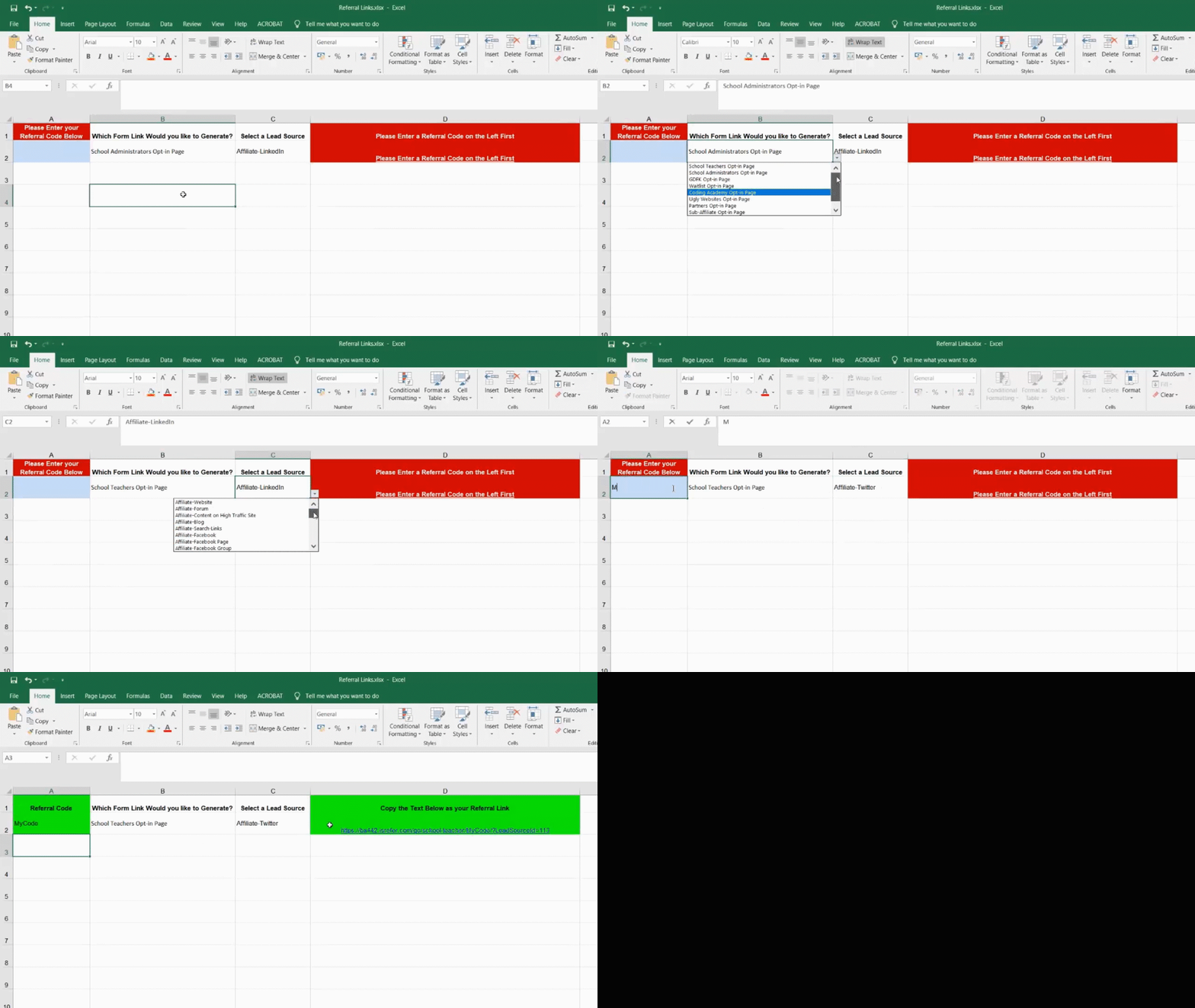
You'll need to copy and paste the links in the last column and send that to the person you want to sell to. As simple as that. That will redirect them to the Webform you have selected
color: #ff9900;">Important Note: Use only these links, they are provided specifically for you. Not doing so may result in you not getting your commission.
color: #379ed0;">
TIP: You can use the link to wrap a button or a clickable place a page or app!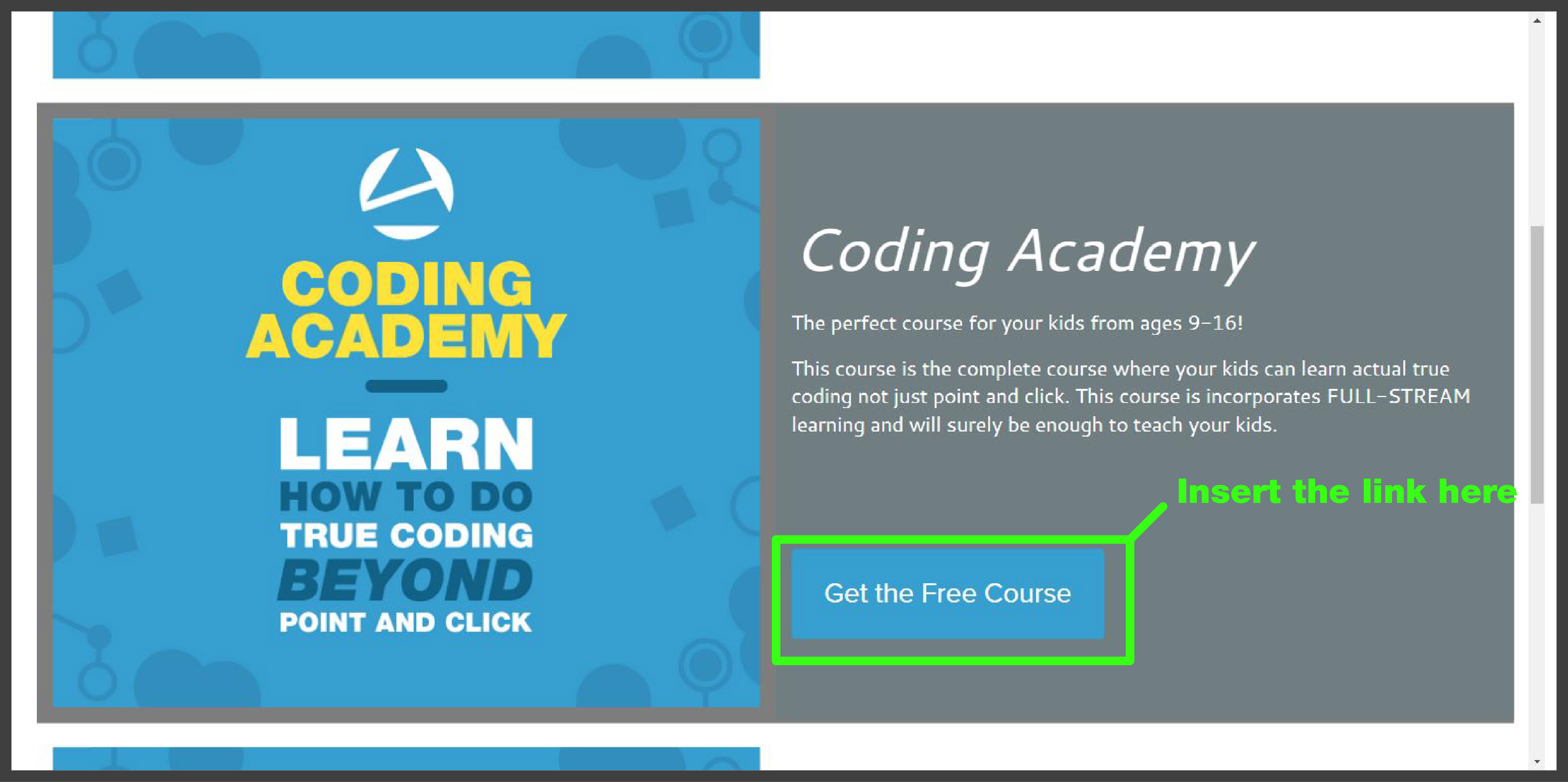

The Reports section gives you access to commission, lead tracking, and sales reports. The My Ledger report will be a valuable tool you can use to access your financial earnings.
006 - Part 2 - Add color Values and Add to Presentation
During this session you will add color values and then add your work to your presentation.
Refine Your Program Part 1
Simple Program Example Backup
Copy and Paste the code below into your processing
function setup() { //drawing size
createCanvas(400, 400);
}
//-------------------------------------
function draw() { //this is where the drawing goes
background(220); //background color
fill("white");
ellipse(230,200,50,50); //left eyeball
fill("black"); //fill color black
ellipse(230,200,25,25); //left pupil
fill("white");
ellipse(300,200,50,50); //right eyeball
fill("black"); //fill color black
ellipse(300,200,25,25); //right pupil
}
//-------------------------------------
002b - Refine your Program Part 2
Simple Program Example Backup
Copy and Paste the code below into your processing
function setup() { //drawing size
createCanvas(400, 400);
}
//-------------------------------------
function draw() { //this is where the drawing goes
background(220); //background color
fill("white");
ellipse(230,200,50,50); //left eyeball
fill("black"); //fill color black
ellipse(230,200,25,25); //left pupil
fill("white");
ellipse(300,200,50,50); //right eyeball
fill("black"); //fill color black
ellipse(300,200,25,25); //right pupil
rect(250,300,50,50); //mouth
fill("red"); //fill color red
rect(260,339,25,25); //mouth
line(300,100,300,200);
}
Welcome to the Coding Academy!
Unit 1 Table of Contents
Automated Video Production Pipeline
This video guides you through setting up an automated video production pipeline, from selecting and testing brand voices using Eleven Labs to pairing them with digital avatars in HeyGen. By following the steps, you'll learn how to catalog and integrate voices, match them with visual characters, and generate preview videos for evaluation. Once you complete the video, you'll be able to efficiently create, test, and organize multiple spokesperson options for your brand's automated content generation. This process empowers you to streamline video production and build a scalable library of branded video assets.
Following are the key things you will be able to do after you watch this demo:
Identify suitable brand voices using generative AI tools.
Catalog and organize voice and avatar options for efficient selection.
Integrate third-party voices into video production platforms.
Pair voices with digital avatars to create compelling spokesperson combinations.
Generate and preview automated video content for evaluation.
Document and track production assets for streamlined workflow.
Select and finalize top spokesperson options for automated content generation.
Introduction to Automated Video Production Pipeline (00:00:00 – 00:00:59)
Josh kicks off the demo by outlining the goal: selecting brand-aligned voices and digital doubles (either your own clone or hired actors), organizing those assets, and laying out the end-to-end steps needed to spin up a fully automated video production pipeline.
Content Sequencing Concept and Cloning (00:00:59 – 00:02:20)
He explains the core idea of building a repeatable sequence of content—cloning a finished production over and over—so you can continually generate new videos by plugging different scripts into the same automated workflow.
Defining Digital Doubles and Voice Types (00:02:20 – 00:03:11)
Josh clarifies terminology (digital twin vs. digital double), walks through the two main “buckets” of voice assets (personality-based clones vs. spokesperson avatars), and discusses how to mix and match them depending on your brand needs.
Selecting Platforms for Generative AI and Deployment (00:03:11 – 00:04:00)
He emphasizes the importance of vetting your generative-AI tools—voice engines and video avatars—and making sure they’re compatible with your target platforms before committing to any given solution.
Brand-Focused Workflow and SRT Utilization (00:04:00 – 00:05:25)
Josh decides to focus on one streamlined method for this demo, using a single SRT transcript file as the “source of truth” for automation—underscoring that a clean, well-formatted SRT is absolute gold when you’re architecting an automated pipeline.
Importing SRT and Leveraging Automation (00:05:25 – 00:07:40)
He shows how to import the SRT into the voice-generation platform, highlighting how the time-coded script drives every subsequent step—from audio rendering to scene assembly.
Setting Up Voice Design in ElevenLabs (00:07:40 – 00:11:49)
A step-by-step walkthrough of testing voice presets, tweaking text lengths, integrating third-party voices, and crafting voice-design prompts to nail down the exact tone and style you want.
Managing Credits and Reviewing Generated Audio (00:11:49 – 00:15:46)
Josh demonstrates how to monitor and conserve your generation credits, preview the rendered audio, swap out placeholder text, and ensure you’re only spending resources on polished clips.
Applying Voiceover and Text Overlays to Video (00:15:46 – 00:19:08)
He attaches the finalized voice track to the video timeline, adds and styles text overlays (centering, contrast adjustments), and assembles the basic video composition ready for export.
Enhancing Prompts with AI Tools for Voice Design (00:19:08 – 00:22:04)
Introduces additional AI utilities for brainstorming and refining your voice-design prompts—showing how to iterate until you get a sample that truly matches your brand voice.
API Key Handling and Asset Export Configuration (00:22:04 – 00:27:28)
A practical guide on securely copying your ElevenLabs API key, configuring export settings (e.g., 4K output), and organizing all generated files into branded folders for easy access.
Frame Rate Considerations and Quality Checks (00:27:28 – 00:31:42)
Notes the default 25 fps setting, explains how frame rate impacts perceived motion, and walks through checking your export quality to avoid any unexpected artifacts.
Avatar Adjustments, Project Naming, and Fallbacks (00:31:42 – 01:05:16)
Josh covers fine-tuning avatar scale and positioning, updating project names for consistency, and setting up fallback workflows if you need to swap voices or visuals mid-pipeline.
Avatar Replacement and Cataloging (00:31:42 – 00:34:06)
Pair your chosen voice with visuals by replacing the default avatar, browsing through the 21 “looks” in each category, using the snipping tool to capture promising thumbnails, and logging each candidate’s name and category in your tracking spreadsheet.
Avatar Testing and Video Formatting (00:34:07 – 00:36:24)
Brainstorm voice–visual combinations (e.g. “August”), select a portrait-mode avatar, preview the static image, upload any custom avatars into the pipeline, drag your source video beneath the avatar layer, and confirm the composition and framing.
Voice-Avatar Sync and Quality Comparison (00:36:24 – 00:37:39)
Generate audio samples to compare HeyGen vs. ElevenLabs quality, force-refresh the clip to confirm it’s using the intended voice (e.g. Ryan Kirk), and watch for the spinning indicator to verify successful render.
Preview Generation and File Labeling (00:38:10 – 00:39:11)
Render a 4K preview of the voice-avatar pairing, then label the export asset with your convention (e.g. 001_RyanKirk_CharlieAvatar) so each test remains organized and easily identifiable.
Pipeline Duplication for Variant Testing (00:39:11 – 00:41:15)
Duplicate the entire sequence to create “Test 002,” swap in a new avatar (such as Colton), explore lifestyle/UGC categories, and note how background removal and frame size affect the final look.
Background Removal and Frame Adjustments (00:41:15 – 00:42:32)
Apply the background-remover tool to avatars with built-in backgrounds, observe any cut-offs (like arms being cropped), tweak the canvas framing, and decide between static vs. transparent backgrounds based on brand needs.
Third-Party Voice Integration Workflow (00:42:32 – 00:44:03)
In the “My Voices” tab, toggle on integrated voices (e.g. Charlie), heart your favorites so they surface first, preview each sample, and ensure the API integration is active before proceeding.
Voice Audition Labeling and Mood Board Documentation (00:44:03 – 00:47:09)
Name each audition (e.g. 002_CharlieAvatar), update your mood board with snipped thumbnails, record which browser tab or category each came from, and keep this documentation up to date for reproducibility.
Frame Rate and Credit Management (00:47:09 – 00:48:06)
Note the default 25 fps setting—mismatches can cause audio sync issues—toggle off “Avatar 4” if you’re on an unlimited plan, and monitor your generation credits to avoid unexpected limits.
Styling and Folder Organization (00:48:06 – 00:49:29)
Adjust text overlay colors to maintain contrast (match your brand palette), create new folders for each batch, and standardize your output directory structure so you know exactly where each rendered clip lives.
Option Preview and Cataloging Workflow (00:49:30 – 00:55:51)
Refresh thumbnails, scroll through voice-avatar combos, assign option numbers, screenshot grids of candidates, and log each pairing’s status (“Yes,” “Maybe,” “No”) in your spreadsheet.
Iteration Process and Consistency Notes (00:55:51 – 00:57:23)
Always regenerate every variation (never reuse stale renders), note any limitations (e.g. animated text can cover on-screen elements), and keep your naming and documentation consistent so the pipeline remains bullet-proof.
Ranking Options and Visual Separators (00:57:24 – 01:02:40)
Introduce visual separators in your catalog (e.g. blank rows), rank the top voice-avatar combos, screenshot your “definite yes” list, and preserve those as templates for future batches.
Additional Voice Integration: Amelia (01:02:40 – 01:04:33)
Search for “Amelia” in your voice library, verify whether it’s built-in or needs third-party integration, add it to favorites, preview the sample, and record its ID for consistent reuse.
Final Voice Candidate Integration (01:04:33 – 01:05:16)
Confirm Amelia’s render, then search for any last candidates (e.g. “Analore”), heart and test them, catalog the results, and ensure each new voice is fully integrated into the pipeline.
Final Pipeline Recap and Scale Duplication (01:07:40 – 01:08:34)
Recap how you’ve selected your final set of voices and avatars, finalize your naming conventions, and highlight that you can now duplicate this entire automated workflow to churn out an endless library of on-brand social-media videos.
Keywords: homepage
Home Page Setup and Configuration
By following the steps demonstrated, users will be able to: Fully customize the welcome text, image sliders, and announcements on the home page to match their branding and highlight key content. They will also learn how to efficiently manage the global navigation, including creating drop-down menus and updating footer links, to establish a cohesive information architecture across their entire website. Additionally, users will gain the skills to ensure their home page layout and navigation are mobile-responsive, enabling a seamless experience for visitors on any device.
Here are the key things you will be able to do after you watch this demo:
Modify the home page welcome text to include custom content and links.
Add new image sliders to the home page and link them to specific pages.
Create and configure new announcements on the home page, including setting their order and linking to URLs.
Restructure the main navigation menu by adding new drop-down items and links.
Customize the footer navigation by removing or updating links as needed.
Modify the quick launch menu buttons on the home page to direct users to key areas.
Backup and restore the navigation structure to ensure consistency across the website.
Leverage color-coding and text editors to simplify the process of updating global navigation.
Ensure the home page layout and navigation are mobile-responsive.
Implement an organized information architecture to support growth of website content.
Customizing the Home Page Welcome Text (0:00:00)
Josh Lomelino explains the process of modifying and deleting content in the CMS to customize the home page welcome text.
He demonstrates changing the welcome text and shows how to link out to social media and add images.
Josh highlights the flexibility of the welcome text block, including the ability to link out to external websites or open images in a new window.
He mentions the ability to insert images and adjust their positioning within the welcome text block.
Configuring Home Page Sliders (0:09:03)
Josh discusses the capability of having multiple image galleries and sliders on the home page.
He explains the process of modifying or deleting content in the CMS to add or change sliders.
Josh demonstrates how to link sliders to specific pages on the website and manage images using the media manager.
He provides tips on ensuring URLs are correctly formatted and how to update sliders without issues with content delivery networks (CDNs).
Managing Home Page Announcements (0:16:05)
Josh shows how to modify and delete announcements on the home page.
He explains the process of uploading new files and linking them to specific pages.
Josh demonstrates how to set announcements to be invisible and how to order them.
He provides tips on using templates for announcements and managing image editing within AMP.
Customizing Global Navigation (0:25:44)
Josh explains the process of modifying the top navigation bar in the CMS.
He demonstrates how to create and manage drop-down menus and simple links.
Josh recommends creating backups of the navigation structure and using VS Code for easier management.
He provides tips on linking navigation items to specific pages and managing the structure of drop-down menus.
Configuring the Footer and Quick Launch Menu (0:31:25)
Josh explains how to modify the footer in the CMS, including adding links and managing the logo.
He demonstrates how to create and manage the Quick Launch menu on the home page.
Josh provides tips on ensuring the footer and Quick Launch menu are mobile responsive.
He explains the process of updating the footer and Quick Launch menu with new links and buttons.
Related Link Network Component
The video demonstrates how to use the related link network feature in AMP to create powerful connections between content items. Viewers will learn to quickly and easily add related links, both internal and external, to any content page, allowing users to navigate the content in a seamless and flexible manner. The video also highlights advanced features like bi-directional linking and filtered search, empowering users to manage and organize their content knowledge base with minimal effort. By the end of the video, viewers will be able to leverage the related link network to enhance the discoverability and user experience of their content.
Explain the concept of related links and their importance in enhancing learning and knowledge building.
Identify the issue of isolated content in many learning systems and the need for creating meaningful connections between ideas.
Describe the use of a sequence of content as a method to create relationships between content items.
Demonstrate the ability to create a related link network, a user interface that visualizes the connections between content.
Utilize AMP's related link network feature to quickly and easily create complex related link structures with minimal effort.
Apply the flexibility of the related link network to create both sequential and asynchronous content paths.
Implement the process of adding related links, including internal and external resources, to a content page.
Manage and reorganize related links to ensure a clean and easy-to-navigate user interface.
Leverage the advanced features of the related link network, such as bi-directional linking and filtered search, to enhance the organization and discoverability of content.
Modify and update related links, including changing titles and URLs, and observe the real-time updates to the user interface.
Initial Drawing Factory Setup
Initial Drawing Factory Setup
Click here to load the live code in P5JS
Or you can copy and paste the code below into your own P5JS
function setup() { createCanvas(600, 600); drawSetup();}
function draw() { // Empty draw loop – all drawing is done in drawSetup()}
function drawSetup() { console.log("I am in the drawSetup function!");
// Setup configuration for drawSetup background('#FFFFCD'); strokeWeight(5); rectMode(CORNER);
let xPosition = 50; let yPosition = 50; let shapeWidth = 300; let shapeHeight = 300; let shapecolor = "8,129,249"; let shapeOutline = "5,6,7";
// Currently, shapecolor and shapeOutline are not used. You can add logic to apply these if needed. rect(xPosition, yPosition, shapeWidth, shapeHeight);}
Drawing Factory Part 2
Drawing Factory Part 2
Click here to load the code live in P5JS
Code you can copy/paste below
function setup() { createCanvas(600, 600); drawSetup();}
function draw() { // Empty draw loop – p5.js will loop this continuously}
function drawSetup() { console.log("I am in the drawSetup function!");
background('#FFFFCD'); strokeWeight(5); rectMode(CORNER);
// Data let xPosition = 50; let yPosition = 50; let shapeWidth = 50; let shapeHeight = 50; let shapecolor = "8,129,249"; let shapeOutline = "5,6,7";
// Call the drawShape function drawShape(xPosition, yPosition, shapeWidth, shapeHeight, shapecolor, shapeOutline); drawShape(xPosition, yPosition, shapeWidth, shapeHeight, shapecolor, shapeOutline);}
function drawShape(xPOS, yPOS, shapeWidth, shapeHeight, shapecolor, shapeOutline) { console.log("I am in the drawShape function and xPOS = " + xPOS);
// Currently, shapecolor and shapeOutline are not used for drawing. // You can add code here to use these parameters if needed.
rect(xPOS, yPOS, shapeWidth, shapeHeight);}
Drawing Factory Dynamic color
Drawing Factory Dynamic color
Click here to load the live P5JS Editor with this code.
Randomization Part 1
Randomization Part 1
Click here to load the P5JS editor with this program.
Here is the source code you can copy and paste into your P5JS Editor. Or you can preview it below.
function setup() { createCanvas(600, 600); drawSetup();}
function draw() { // Empty draw loop – waiting for user interaction or further drawing}
function drawSetup() { console.log("I am in the drawSetup function!");
// Setup configuration for drawSetup background('#FFFFCD'); strokeWeight(5); stroke('#6e6e6e'); let numOfShapes = 50; // the number of shapes to draw
// Create randomly placed circles on the canvas with randomized RGB values / alpha values // (loop body not shown in the Processing code) for (let i = 0; i < numOfShapes; i++) { // (Add code here if needed) }
// Data let xPosition = 50; let yPosition = 50; let shapeWidth = 50; let shapeHeight = 50; let shapecolor = "8,129,249"; let shapeOutline = "5,6,7";
// Function calls - send arguments drawShape(xPosition, yPosition, shapeWidth, shapeHeight, shapecolor, shapeOutline); drawShape(xPosition + 20, yPosition + 20, shapeWidth + 20, shapeHeight + 20, shapecolor, shapeOutline);}
function drawShape(xPOS, yPOS, shapeWidth, shapeHeight, shapecolor, shapeOutline) { console.log("I am in the drawShape function! and xPOS = " + xPOS); // Currently, shapecolor and shapeOutline are not used in this function. // You can add code to utilize these parameters if needed. rect(xPOS, yPOS, shapeWidth, shapeHeight);}
Keywords: Screen,recording,audio,capture,on-camera,presentation,production,challenges,lighting,consistency,studio,lights,color,temperature,LED,panels,backlights,kicker,light,digital,double,4K,webcam,system,performance,green,screen,Camtasia
In this video, Josh Lomelino demonstrates Method Three for creating engaging screen recordings that combine on-camera presence, screen capture, and audio. Viewers will learn how to set up professional lighting using LED panels, choose the right camera equipment, and optimize their recording environment for high-quality video production. The tutorial covers essential techniques for maintaining visual continuity, managing lighting color temperatures, and using tools like Camtasia and green screens to create polished, professional-looking video content. By following Josh's guidance, content creators will be able to produce dynamic, natural-looking screen recordings with improved technical quality and visual appeal.
In this video, Josh Lomelino demonstrates Method Three for creating engaging screen recordings that combine on-camera presence, screen capture, and audio. Viewers will learn how to set up professional lighting using LED panels, choose the right camera equipment, and optimize their recording environment for high-quality video production. The tutorial covers essential techniques for maintaining visual continuity, managing lighting color temperatures, and using tools like Camtasia and green screens to create polished, professional-looking video content. By following Josh's guidance, content creators will be able to produce dynamic, natural-looking screen recordings with improved technical quality and visual appeal.
Here are the key things you will be able to do after you watch this demo:
Manage on-camera and screen recording simultaneously
Maintain visual continuity during video recordings
Set up professional lighting using LED panels
Adjust color temperature and brightness for optimal video quality
Create a three-point lighting setup with key, fill, and kicker lights
Select and configure appropriate camera equipment for video production
Optimize system performance for screen and camera recording
Use a Wacom tablet for digital whiteboarding
Implement green screen techniques for background removal
Combine multiple video takes into a seamless recording
Export and render high-quality video files
Create digital double avatars for reusable content
Troubleshoot common video production challenges
Select and position lighting equipment safely
Integrate on-camera performance with slides and screen recordings
Method Three Demo and Challenges 0:08
Josh Lomelino introduces method three, which involves screen recording, audio, and on-camera capture, emphasizing its ability to capture natural, unscripted moments.
He highlights the challenges of managing both screen and camera presence simultaneously, including the need to maintain a consistent camera angle and expression.
Josh explains the importance of resuming recording with a neutral expression to ensure visual continuity.
He mentions the difficulty of pausing and resuming recording without noticeable edits when on camera.
Lighting Considerations for On-Camera Work 1:46
Josh discusses the significance of lighting in on-camera work, including the need to keep lighting consistent between takes.
He recommends using affordable studio lights, such as LED lights, which stay cool and are suitable for longer sessions.
Josh explains the concept of color temperature, noting that outdoor light can affect indoor lighting and cause color shifts.
He suggests using LED lights that allow adjustments in brightness and color temperature to manage lighting effectively.
Setting Up Lighting Equipment 3:02
Josh shares his preference for the Spectro Essential 360 LED panels, which range from 3250 to 6000 Kelvins and are dimmable.
He describes his typical setup, which includes stacking four LED panels in front and sometimes behind him to create soft, even light.
Josh emphasizes the importance of using back lights to create a "kicker light" effect, which helps outline the subject and makes them stand out from the background.
He advises adding weight to light stands to prevent them from tipping if bumped.
Camera and Recording Equipment 6:07
Josh talks about using a full-frame camera like the Canon 5D Mark III for high-quality recordings, but notes that a good 4K webcam can also deliver excellent results.
He recommends Logitech webcams, such as the Logitech 1080P cam, for their affordability and performance.
Josh explains the benefits of recording screen and camera separately, especially if the system can't handle 4K video and screen capture simultaneously.
He mentions the use of digital double avatars for reusing lighting and performance footage.
Optimizing System Performance and Audio Settings 8:15
Josh advises optimizing the graphics card and operating system for better system performance.
He recommends setting the microphone to 48,000 hertz and ensuring phantom power is turned on through the sound interface.
Josh suggests using a Wacom tablet for live whiteboarding, either with the Cintiq for direct drawing or a more affordable tablet for drawing on a pad.
He emphasizes the importance of setting pen lines thick enough to show clearly in high-resolution recordings.
Using Camtasia and Green Screens 9:20
Josh highlights Camtasia's ability to combine multiple takes into one smooth recording and overlay on-camera performance videos on PowerPoint slides.
He explains the use of green screens for added flexibility, including the need to light the green screen evenly and separately from the face lighting.
Josh mentions the built-in removal tool in Camtasia for easily removing the green screen background.
He advises fine-tuning the green screen setup to avoid issues with hair and shoulder edges.
Exporting and Backing Up Videos 10:17
Josh recommends exporting videos as MP4 files using the H.264 format with a rendering quality around 75%.
He advises keeping files organized and backed up for potential updates.
Josh mentions the use of green screens for recording digital double avatar videos, which can be easily removed from the background later.
He concludes the demo by encouraging viewers to invest in high-quality audio and video assets for better results.
Keywords: Webcam,DSLR,setup,brightness,contrast,color,temperature,LUT,presets,image,quality,white,balancing,Logitech,software,post,production,Camtasia,Premiere,Pro,Lumetri,video,on-camera,performance
In this video, Josh provides a comprehensive guide to improving on-camera video quality using webcam settings and post-production techniques. Viewers will learn how to optimize their camera's brightness, contrast, and color settings through software applications like Logitech's control panel, and understand the importance of proper lighting and white balancing. The tutorial demonstrates how to fine-tune video appearance by adjusting settings, testing variations, and using LUT presets in editing software like Premiere Pro. By following these steps, content creators can produce professional-looking videos with consistent, high-quality visual performance.
In this video, Josh provides a comprehensive guide to improving on-camera video quality using webcam settings and post-production techniques. Viewers will learn how to optimize their camera's brightness, contrast, and color settings through software applications like Logitech's control panel, and understand the importance of proper lighting and white balancing. The tutorial demonstrates how to fine-tune video appearance by adjusting settings, testing variations, and using LUT presets in editing software like Premiere Pro. By following these steps, content creators can produce professional-looking videos with consistent, high-quality visual performance.
Here are the key things you will be able to do after you watch this demo:
Calibrate webcam settings for optimal image quality
Adjust brightness and contrast using manufacturer-specific software
Perform white balance corrections using neutral objects
Identify and correct color temperature issues
Screenshot and test video settings across multiple devices
Apply LUT presets for consistent color grading
Use post-production tools like Premiere Pro for video enhancement
Create repeatable video quality settings for future productions
Troubleshoot common on-camera video performance problems
Compare and evaluate video quality against professional standards
Critical Considerations for On-Camera Video Performances 0:08
Josh Lomelino introduces the topic of critical considerations for on-camera video performances and video quality.
He emphasizes the importance of using either a webcam or a DSLR setup, each requiring different strategies but relying on the same basic principles.
Key settings like brightness, contrast, color, and temperature are highlighted as essential for managing video quality.
LUT presets are mentioned as a tool for applying color adjustments quickly and consistently in post-production.
Focus on Webcam Use Case 0:51
Josh Lomelino explains that he will primarily focus on the webcam use case, as it is likely the dominant form of production for most people.
He discusses the benefits of using specific software applications for webcams, such as Logitech, to manage image quality settings.
The Logitech settings control panel is used as an example to demonstrate managing all aspects of the image, starting with brightness adjustments.
Josh emphasizes the importance of setting up the environment and lighting properly to minimize ongoing adjustments.
White Balancing and color Adjustments 2:28
Josh explains the process of white balancing, using neutral objects like teeth or a white piece of paper to calibrate the camera.
He advises adjusting brightness, contrast, and color settings, and suggests testing variations by screenshotting or recording short clips.
He shares a personal anecdote about a time when his video looked off due to incorrect white balancing, leading to concerns about his health.
The importance of locking in settings, screenshotting results, and storing them for future reference is emphasized.
Post-Production Adjustments 4:06
Josh discusses the use of post-production tools like Camtasia and Premiere Pro for making quick adjustments if the video still doesn't look right.
He mentions using LUT presets, either out of the box or custom ones, to enhance video quality in post-production.
Josh considers this a fallback plan rather than a primary method but acknowledges its effectiveness.
He introduces Lumetri color in Premiere Pro as an advanced tool for achieving high-quality, polished video quickly and efficiently.
Comparing Video Quality and Final Thoughts 5:00
Josh highlights the importance of being mindful of all aspects of video quality to compare content side by side with others.
He emphasizes the goal of producing excellent on-camera performances with outstanding video quality.
Josh concludes the video by mentioning that he will see the audience in the next video.
Keywords: Green screen, virtual avatar, training video, RGB, Ultra Key
In this tutorial, Josh demonstrates how to create a versatile virtual avatar using a green screen background. By following his step-by-step process, viewers will learn to record a training video, use video editing software to remove the background, and export a high-quality 4K file for avatar creation. The technique allows users to generate a digital double that can be placed on any background, enabling them to create numerous training videos, presentations, and lectures without being physically present. Ultimately, viewers will gain the skills to produce an AI avatar that can work continuously, freeing up their personal time while maintaining professional content production.
In this tutorial, Josh demonstrates how to create a versatile virtual avatar using a green screen background. By following his step-by-step process, viewers will learn to record a training video, use video editing software to remove the background, and export a high-quality 4K file for avatar creation. The technique allows users to generate a digital double that can be placed on any background, enabling them to create numerous training videos, presentations, and lectures without being physically present. Ultimately, viewers will gain the skills to produce an AI avatar that can work continuously, freeing up their personal time while maintaining professional content production.
Following are the key things you will be able to do after you watch this demo:
Shoot a training video using a green screen background
Apply the ultra key filter in video editing software
Create a 100% green color matte
Remove background elements from video footage
Export high-quality 4K video files
Generate a virtual avatar using AI software
Render digital doubles for multiple presentations
Layer virtual avatars over different backgrounds
Integrate avatar presentations with PowerPoint and Canva slides
Produce training content without physical studio time
Creating a Virtual Avatar with a Green Screen Background 0:08
Josh Lomelino explains the importance of using a green screen background for creating virtual avatars, emphasizing versatility and ease of use.
He describes the general principle of achieving a 100% green background in the RGB model, noting the difficulty of achieving perfect green.
Josh introduces simple steps to help with the process, including shooting a two-minute training video on a green screen and using 100% green shapes in video editing software.
He demonstrates the use of the ultra key filter in video editing software to eliminate the background and adjust settings like feathering, key color, and matte cleanup.
Setting Up the Green Screen Workflow 5:18
Josh explains the creation of a 100% green color matte in video editing software, specifying the width and height to be 4k.
He describes layering the green clip underneath the video track and extending it to the same length as the training clip.
Josh mentions the importance of placing additional green color mats to fix any spillover areas and avoid relying solely on the ultra key effect.
He outlines the process of setting in and out points, exporting the clip as an MP4 file, and using Adobe Media Encoder for batch rendering.
Exporting and Adjusting Settings 8:12
Josh details the export settings, including using the h264 codec for high quality and specifying the file type as MP4.
He emphasizes the importance of evenly lighting the green screen for a better key and mentions common issues like wrinkles and folds.
Josh shows how to create a new avatar in Hey Gen or other virtual avatar software, validating the model by reading a code aloud.
He explains the process of uploading source material, validating the camera angle, and retaining 4k footage for higher resolution renders.
Using the Virtual Avatar in Various Productions 11:27
Josh discusses the flexibility of using the virtual avatar in presentations, lectures, and demos, including mixing with PowerPoint slides and Canvas slides.
He highlights the ability to create unlimited digital doubles and the importance of not checking the AI remove background option.
Josh explains the use of Camtasia's Remove color effect to key out the green color in the background and the importance of using high-quality settings.
He advises against using proxy footage for making decisions about green screen settings and emphasizes the need for maximum quality settings in video editing software.
Final Steps and Infinite Possibilities 14:54
Josh concludes by mentioning the infinite possibilities of the workflow, including creating presentations directly inside Hey Gen.
He discusses integrating with Canva for timed slide changes and animations, and the option to check the background removal button for a transparent background.
Josh reiterates the importance of using the method shown in the video to achieve 4k production quality, even if it requires a more expensive plan.
He wraps up the demo, encouraging viewers to explore the various applications and approaches for their virtual avatars.
Keywords: batch, avatar, digital-double, production, lighting, setup, color, correction, video, editing, project, HeyGen, encoder
In this tutorial, Josh Lomelino demonstrates a comprehensive workflow for efficiently batch producing multiple virtual avatars with consistent lighting and color quality. Viewers will learn how to set up precise video editing project settings, create a master sequence with multiple camera angles, and use Adobe Media Encoder to render individual clips for avatar training. The technique allows content creators to scale their avatar production, quickly export multiple versions of their digital doubles, and maintain a well-organized project structure that enables future edits and refinements. By following this method, users can streamline their avatar creation process, saving significant time and producing high-quality, professional virtual representations.
In this tutorial, Josh Lomelino demonstrates a comprehensive workflow for efficiently batch producing multiple virtual avatars with consistent lighting and color quality. Viewers will learn how to set up precise video editing project settings, create a master sequence with multiple camera angles, and use Adobe Media Encoder to render individual clips for avatar training. The technique allows content creators to scale their avatar production, quickly export multiple versions of their digital doubles, and maintain a well-organized project structure that enables future edits and refinements. By following this method, users can streamline their avatar creation process, saving significant time and producing high-quality, professional virtual representations.
Following are the key things you will be able to do after you watch this demo:
Configure video editing project settings to match camera specifications
Create a systematic numbering and organization system for avatar sequences
Set up multiple camera angles within a single project
Use Adobe Media Encoder to batch render avatar clips
Export individual video files for virtual avatar training
Implement color correction and LUT modifications across multiple clips
Organize project files for efficient content production
Develop a scalable workflow for mass avatar creation
Troubleshoot and remove performance anomalies in avatar recordings
Back up and preserve digital asset production files
Setting Up Lighting and color Values 0:08
Josh Lomelino explains the importance of setting up lighting and color values once to achieve consistent results over time.
He emphasizes the need to test lighting and color values before batch producing a group of avatars.
Josh mentions the flexibility to make further adjustments later using L, U, T color modifications or color correction tools.
The workflow allows for the efficient production of 10 to 50 avatars, ensuring visual polish from the start.
Consistency in Project Settings 1:42
Josh highlights the necessity of matching video editing project settings to the specifications of the recording camera.
He provides an example of setting up a project for a Logitech 4k camera and ensuring consistency in frame size and frame rate.
Josh advises checking file properties to extract frame size and frame rate if unsure.
Consistency in project settings is crucial for mass producing different clips.
Creating a Master Sequence 2:59
Josh sets up a master sequence to serve as a template for duplicating sequences as needed.
He uses a clear numbering system for sequences, labeling each avatar with a specific outfit and camera angle.
Examples include Avatar 001, DIRECT address, no hands, and Avatar 0013, quarter view.
Josh organizes sequences in a dedicated folder called a bin for project organization.
Batch Rendering with Adobe Media Encoder 4:56
Josh explains the process of adding clips to a Batch Render Queue using Adobe Media Encoder.
He selects in and out points for each camera angle, creating dedicated files for each angle.
Josh configures the encoder to render only the specified in and out range on the timeline.
Each camera angle should be exported as an individual MP4 file, specifying the folder location and file name.
Finalizing and Organizing Project Files 6:40
Josh emphasizes the importance of organizing project files, including original source files, rendered clips, and project files.
He advises saving the video editing project frequently as a fail-safe for future edits.
Josh highlights the need to review source footage for any performance anomalies and correct them.
The workflow allows for the removal of outdated avatars and recreation without problematic movements.
Backing Up and Scaling Content Production 8:25
Josh frequently backs up his entire project folder by compressing it into a zip file for disaster recovery.
He mentions the time investment upfront to create polished assets and resolve hiccups.
Josh advises starting with manual methods and gradually scaling to more advanced techniques.
The well-organized project structure saves time, enables content production scaling, and supports high-performance results.
AMP LinkedIn Week 1

Nine months. That’s how long my membership launch lived on a whiteboard. Every week, I added more ideas, more sticky notes, more to-dos. And every week, I was no closer to going live.
If you’ve ever felt buried under your own plans, you know the weight. The irony is that my mountain of planning was the very thing keeping me from taking the first step. Here’s how I went from paralyzed by preparation to launched — with paying members — in just three weeks.
I remember standing in my office one Thursday afternoon, staring at the board. On one side was a list of forty-seven must-have features. On the other, a launch calendar with more arrows, colors, and timelines than a NASA mission.
I was stuck. Not because I didn’t care — I cared too much. I wanted the launch to be perfect: flawless videos, a polished funnel, airtight automations. The problem was, I was treating my membership like it needed to open as a finished empire instead of a simple starting point.
Every day I thought, I’ll start recording once I finish mapping the bonus modules. Or, I’ll build the checkout once I’ve found the perfect upsell. It felt productive, but deep down, I knew it wasn’t movement. It was delay in disguise. And with each passing week, the gap between where I was and where I wanted to be only grew wider.
Then something snapped. I had just finished a call with a friend, another entrepreneur who launched her program with one core module and an email subscription membership. She had paying members in a week. It wasn’t jealousy that got me. It was clarity. She wasn’t waiting for perfect. She was building momentum.
That day, I erased the whiteboard and decided I would launch in twenty-one days, no matter what.
I called it my momentum launch. Instead of trying to launch everything, I focused on three things: a clear promise — the result members could expect after thirty days inside; a minimal viable experience — the smallest content needed to deliver that promise; and a simple sign-up path — one page, one checkout, no detours.
The moment I committed, everything shifted. Decisions became easier. If it didn’t serve those three goals, it didn’t make the cut. I swapped my forty-seven must-have features for three lessons recorded on my phone. I replaced my complex funnel map with a single landing page. And instead of spending two weeks choosing a webinar platform, I sent personal invites by email.
On day twenty-one, my imperfect membership opened to paying members. No massive content library. No cinematic videos. No labyrinth of automations. Just a clear promise, a simple experience, and a way to pay.
And the craziest part? Those members were more engaged than I’d ever seen in my later, more polished launches.
If you’re stuck in the planning loop, here’s how to run your own three-week momentum launch:
Step 1: Define the Promise, Not the Product Your members aren’t buying a collection of modules — they’re buying a transformation. Write one sentence: after thirty days in my membership, you will be able to [fill in the blank].
Step 2: Build the Minimum Viable Experience Start with the smallest content set that delivers the promised result — maybe three lessons, one live call, or a simple challenge.
Step 3: Create a Simple Sign-Up Path Confusion kills conversion. Keep it to one landing page, one clear pitch, and one join now button.
Step 4: Set a Non-Negotiable Launch Date Give yourself twenty-one days. Announce it. Work backward. Eliminate the fluff.
Step 5: Launch and Learn Treat it as a beta. Your goal isn’t perfection — it’s proof.
I get it. You want your first launch to be flawless. But perfection is a moving target, and the people you’re meant to help aren’t waiting for perfect. They’re waiting for you.
Those members from my imperfect launch? Many are still with me today. Not because I had the slickest platform or fanciest videos, but because I got them results. You don’t need more time. You need a start date. You don’t need a bigger plan. You need a smaller, sharper one. And you don’t need permission. You need momentum.
If you’re ready to stop circling your launch and start moving, I’ve put together my Momentum Map — the exact twenty-one day checklist I used to go from stuck to launched with my first paying members. It’s free, and it’s built for busy entrepreneurs who want to start earning without building a content empire first.
Send me a message and I'll send it to you.
Your membership doesn’t have to be perfect to change lives. But it does have to exist. Let’s make sure it does — three weeks from today.
This welcome video guides your through a comprehensive, actionable UX design process that transforms innovative ideas into market-ready products. Viewers will learn how to uncover customer pain points, develop clear user personas, and rapidly iterate prototypes using Lean UX principles. The session demonstrates how to map out product strategies, conduct usability testing, and seamlessly prepare for product launch. Whether you’re a founder, designer, or product manager, this demo equips you with the tools to accelerate time-to-market and deliver a superior user experience.
This welcome video guides your through a comprehensive, actionable UX design process that transforms innovative ideas into market-ready products. Viewers will learn how to uncover customer pain points, develop clear user personas, and rapidly iterate prototypes using Lean UX principles. The session demonstrates how to map out product strategies, conduct usability testing, and seamlessly prepare for product launch. Whether you’re a founder, designer, or product manager, this demo equips you with the tools to accelerate time-to-market and deliver a superior user experience.
After completing this video, viewers will understand a proven, step-by-step UX design process that turns innovative ideas into market-ready products with efficiency and clarity. They will be equipped to map out customer pain points, prioritize features, and create user personas that drive actionable insights. The video empowers participants to build and refine rapid prototypes, conduct usability testing, and confidently guide products toward a successful launch. By following this process, viewers can accelerate time to market and deliver a seamless, customer-focused experience.
Following are the key things you will be able to do after you watch this demo:
Introduction to UX Design Process 0:00
Josh Lomelino introduces himself and expresses excitement about showcasing user experience design examples.
He emphasizes the importance of the Lean UX approach, which transforms innovative ideas into market-ready products efficiently.
The focus is on demonstrating the power and flexibility of their UX design process through various phases.
Josh mentions that he will show UX prototypes to illustrate each phase in context.
Phase One: Building the Foundation for Innovation 0:41
Josh explains that the first phase involves a deep dive into understanding the key questions about the product.
The goal is to identify customer and business pain points and map out the vision.
This phase involves a forensic exploration of customer pain points and proposing solutions.
The outcome is a laser-focused blueprint that transforms abstract concepts into actionable insights.
Phase Two: Execution Strategy and Rapid Ideation 1:48
In this phase, the focus is on turning insights into a rapid ideation process.
The team visualizes the customer experience and creates an actionable roadmap.
Detailed customer experience mapping is performed for strategic feature prioritization.
The approach is agile, allowing for a dynamic roadmap that adapts and evolves.
Phase Three: Product Leadership and Strategic Alignment 2:34
Josh describes this phase as connecting strategic dots to ensure every feature aligns with business objectives.
The product team and UX team become strategic partners, aligning product vision with business objectives.
The outcome is a unified strategic narrative and the basis for an actionable project plan.
The team starts building the product and approaches the MVP stage.
Phase Four: Pre-MVP Development and Product Reconnaissance 3:14
This phase involves identifying potential barriers before building the rapid prototype.
Product and technical reconnaissance is critical for success, uncovering technological limitations and design challenges.
The goal is to prevent future roadblocks and identify technology opportunities.
The team finalizes the pre-MVP development, ensuring a smooth transition to the next phase.
Phase Five: UX Design and Persona Development 4:03
Josh highlights the importance of user experience research in this phase.
The team creates detailed customer scenarios, mapping each pain point to specific system features.
The focus is on translating user research into detailed personas for rapid prototyping.
This phase brings interfaces to life with precision and continuous iteration.
Phase Six: Building the Rapid Prototype 4:47
The team transitions from paper sketches to interactive wireframes, moving from low to high fidelity.
Continuous feedback is gathered at each key point of the process, making adjustments as needed.
The goal is to go from imagination to a tangible experience, seamlessly integrating business logic into interface solutions.
The team progressively refines the prototype, ensuring it meets user needs and business objectives.
Phase Seven: Usability Testing and Continuous Refinement 5:27
Usability testing is conducted with continuous feedback and multiple rounds of revisions.
The focus is on continuous user experience refinement and evidence-based design solutions.
The team aims to hit the bullseye together, ensuring the product meets user needs and business objectives.
The process involves systematic improvement, leading to a polished final product.
Phase Eight: Finalizing Visual Design and Product Identity 5:49
Once the user experience is locked in, the team develops comprehensive style guides.
The goal is to create a comprehensive brand experience, going beyond aesthetics.
The development team gains a clear understanding of the visual voice of the product.
The team defines icons, typography, color, and user interface consistency.
Phase Nine: Design and Documentation for Development 6:35
As the project nears the end, the team prepares technical specifications and development guidelines.
The focus is on creating a seamless handoff to the development team.
The team provides technical blueprints and detailed implementation guidelines.
The goal is to ensure a smooth transition to development and preparation for launch.
Phase Ten: Launch and Final Transformation 6:57
The final phase involves transforming the prototype into a live product.
The team helps with the MVP launch, either using the client's development team or their tech stack.
The team provides all final specifications and the digital prototype from prior steps.
Clients can optionally choose to accelerate their time to market by leveraging the SAS MVP accelerator.
Conclusion and Call to Action 8:41
Josh emphasizes the importance of transforming concepts into reality.
The team has invested over 15,000 hours developing a framework that reduces front-end development time.
The mobile-first responsive architecture offers instant scalability and reduced technical complexity.
The team offers to partner with clients to augment design and technology efforts, ensuring a successful launch.
Discover how to take your app idea from concept to high-fidelity MVP with lightning speed in this hands-on demo! You’ll learn how to organize product requirements, train AI tools using your own user stories, and craft powerful prompts that supercharge no-code and low-code platforms like Lovable and Thunkable. Watch step-by-step as we merge user insights, automate prototype creation, and iterate rapidly to build a functional, customizable app without writing code. Whether you're a founder, designer, or developer, this demo will empower you to launch better products, faster.
Discover how to take your app idea from concept to high-fidelity MVP with lightning speed in this hands-on demo! You’ll learn how to organize product requirements, train AI tools using your own user stories, and craft powerful prompts that supercharge no-code and low-code platforms like Lovable and Thunkable. Watch step-by-step as we merge user insights, automate prototype creation, and iterate rapidly to build a functional, customizable app without writing code. Whether you're a founder, designer, or developer, this demo will empower you to launch better products, faster.
After watching this video, viewers will be able to efficiently structure and document their product ideas, train AI tools with custom user stories and requirements, and generate detailed prompts for building full-featured app prototypes. They'll learn how to merge, organize, and optimize user stories to maximize productivity and reduce costs with AI-driven app builders like Lovable and Thunkable. By following these steps, viewers can rapidly create, customize, and iterate on high-fidelity MVPs, preparing their apps for further refinement and deployment. This workflow empowers users to leverage multiple no-code platforms and streamline their app development from concept to actionable prototype.
Following are the key things you will be able to do after you watch this demo:
Understanding Pricing and Pre-Composing Chats 0:11
Josh Lomelino explains the importance of understanding pricing in AI apps, emphasizing that credits are tied to prompts and chats.
He advises pre-composing chats in tools like ChatGPT to avoid high costs in apps like Lovable, which charge based on daily credits.
Josh demonstrates how to go back to prior steps in ChatGPT to train the system on user stories and features.
He highlights the need to ensure the chat is trained universally across all chats, otherwise, it needs to be asked to do so explicitly.
Training and Managing Chats 4:53
Josh discusses the process of training chats on system functionality, using SRT files as an example.
He explains the incremental compounding of work in Lovable, which makes it costly to start chatting without a well-defined prompt.
Josh emphasizes the importance of optimizing the use of credits to avoid high costs, comparing it to the cost of a development team.
He mentions the potential for the browser to choke on large chats and the need to break them into manageable parts.
Merging and Organizing User Stories 7:17
Josh demonstrates how to merge multiple chats to create a faster and more efficient chat.
He explains the process of outputting user stories as a CSV and the challenges with special characters in CSV files.
Josh suggests exporting as an Excel file to fix formatting issues.
He highlights the importance of incrementally building a pipeline to automate the creation of front-end interface screens.
Enhancing User Stories with Features and Acceptance Criteria 9:36
Josh adds a feature column to the user story backlog, differentiating it from user story language.
He includes acceptance criteria, which helps in testing and identifying the area within the app where the feature would exist.
Josh emphasizes the importance of documenting key wins and moments in a Google Doc for future reference.
He explains the process of comparing the current chat output with a saved Word file to ensure completeness.
Creating a Master Prompt for Lovable 17:44
Josh discusses the process of creating a master prompt for Lovable, which includes context, logical structure, explicit instructions, and adaptive considerations.
He highlights the need for granular detail to get specific UI controls in the prompt.
Josh explains the importance of saving the output as a Google Doc or GitHub repository for version control.
He demonstrates how to rewrite the master prompt to include all features in one MVP release.
Training Lovable on Documentation 42:48
Josh trains Lovable on the documentation of the tool, which helps in creating a prompt for Lovable.
He explains the process of crawling through the documentation pages and listing the pages learned from.
Josh emphasizes the importance of checking that the AI is actually doing what it claims to do.
He demonstrates how to extract and summarize recommendations from the AI.
Refining and Customizing the App 45:00
Josh refines and customizes the app by adjusting colors and mastering prompting.
He explains the process of using chat mode to plan additional features like a coach and admin portal.
Josh demonstrates how to toggle between different device types to test the app on various form factors.
He highlights the importance of iterating on the app to ensure it meets user needs and pain points.
Exploring Different Tools and Integrations 49:51
Josh explores different tools like Thunkable, Bubble IO, Cursor, Replit, Flutter Flow, and Draftbit.
He explains the process of training the AI on the documentation of these tools to create a single prompt.
Josh highlights the importance of integrating tools like Supabase and Airtable for data management.
He emphasizes the need to experiment with different tools to find the best fit for the project.
Finalizing the MVP and Next Steps 1:04:33
Josh finalizes the MVP by ensuring all features are included in the prompt.
He explains the process of exporting the code base and pushing it to GitHub for further development.
Josh highlights the importance of iterating on the app to ensure it meets user needs and pain points.
He explains the next steps of refining and customizing the app, and preparing it for deployment to the app stores.
Partner Center Tour
The Affiliate Center is a password-protected portal that you can use to access your sales reports, redirect links, and acquire marketing resources that is provide for you in the form of Banners, Email Templates or Web Pages. The Affiliate Center will give you easy access to the tools and information they you'll to pile up those commissions!
If you haven't logged in yet to your affiliate account, follow these simple steps:
1. Access the instructional email we sent you with your login information. You should receive this email once you have completed our opt-in form with your name and email address. This email will contain your ID, Password and Referral Code which you should keep secure at all times so you don't lose access to your account.
2. Access the color: #3366ff;">color: #3366ff;">color: #3366ff;">Affiliate Center Login in Pagecolor: #3366ff;">.
color: #3366ff;">color: #3366ff;">color: #3366ff;">
color: #3366ff;">color: #3366ff;">color: #3366ff;">color: #000000;">3. Just enter your login information, click the login button, and you're in!
There are three menu categories in the Affiliate Center: Home, Resources, and Reports.

In the Home section you can access your profile to update you contact information including email, phone number, address and the name of your company. You can also access the programs tab to see what commission programs you are included in and see what the products you can sell and what your commission setup is with those programs. Lastly, your commission structure can be viewed on the last tab

The resources section is where the magic happens. This is where you get the tools you need for promoting our digital products.

color: #ff9900;">Important Note: Use only these links, they are provided specifically for you. Not doing so may result in you not getting your commission.
color: #379ed0;">
TIP: You can use the link to wrap a button or a clickable place a page or app!

The Reports section gives you access to commission, lead tracking, and sales reports. The My Ledger report will be a valuable tool you can use to access your financial earnings.
There are no Main Site search results.