
Search Phrase = Portal
This page is part of the JV partner and distributor on-boarding process. This is the redirect link from the Instructional Email Sequence in Infusionsoft
The Affiliate Center is a password-protected Portal that you can use to access your sales reports, redirect links, and acquire marketing resources that is provide for you in the form of Banners, Email Templates or Web Pages. The Affiliate Center will give you easy access to the tools and information they you'll to pile up those commissions!
If you haven't logged in yet to your affiliate account, follow these simple steps:
1. Access the instructional email we sent you with your login information. You should receive this email once you have completed our opt-in form with your name and email address. This email will contain your ID, Password and Referral Code which you should keep secure at all times so you don't lose access to your account.
2. Access the Affiliate Center Login in Page.

3. Just enter your login information, click the login button, and you're in!
There are three menu categories in the Affiliate Center: Home, Resources, and Reports.

In the Home section you can access your profile to update you contact information including email, phone number, address and the name of your company. You can also access the programs tab to see what commission programs you are included in and see what the products you can sell and what your commission setup is with those programs. Lastly, your commission structure can be viewed on the last tab

The resources section is where the magic happens. This is where you get the tools you need for promoting our digital products.
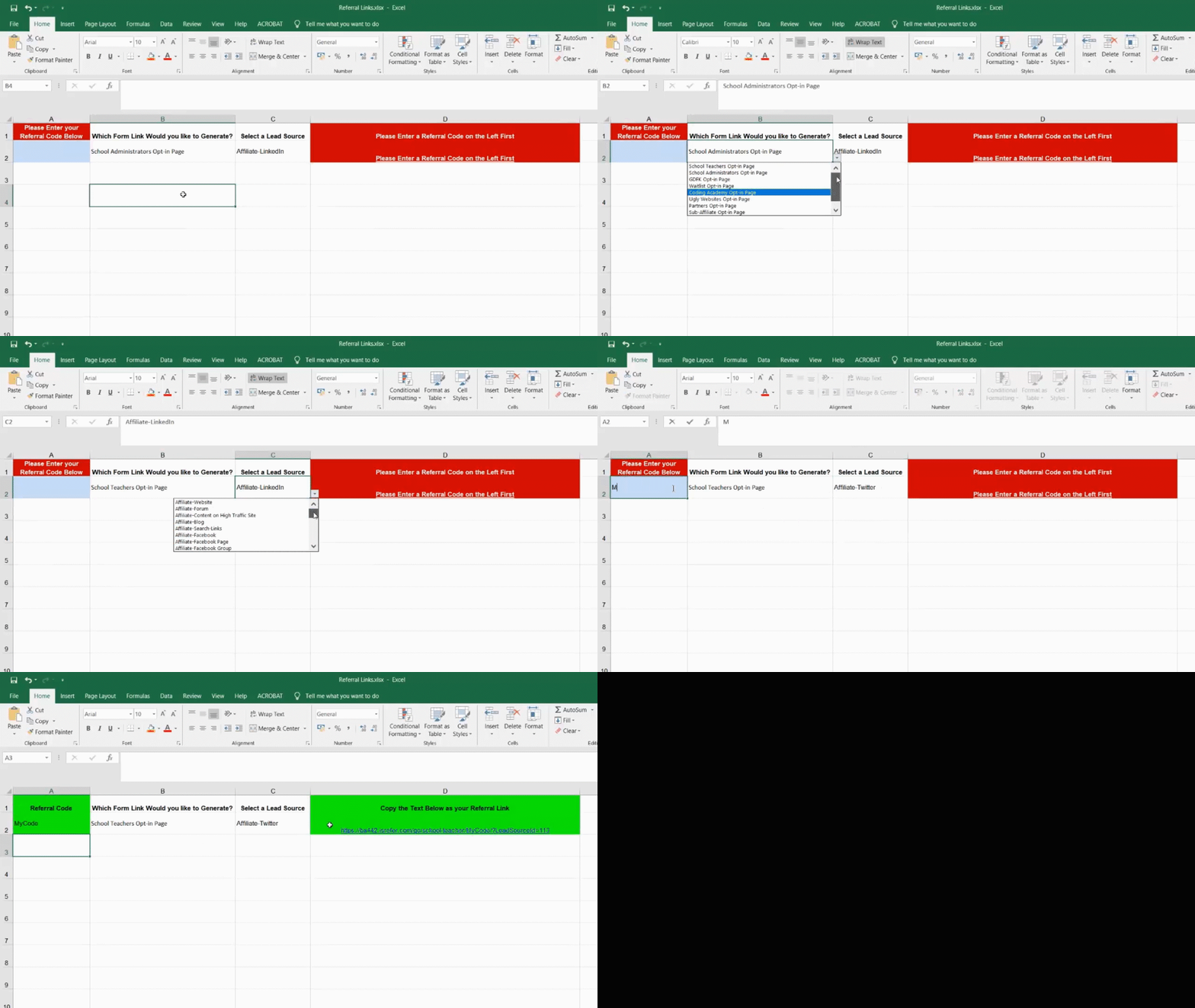
You'll need to copy and paste the links in the last column and send that to the person you want to sell to. As simple as that. That will redirect them to the Webform you have selected
Important Note: Use only these links, they are provided specifically for you. Not doing so may result in you not getting your commission.
TIP: You can use the link to wrap a button or a clickable place a page or app!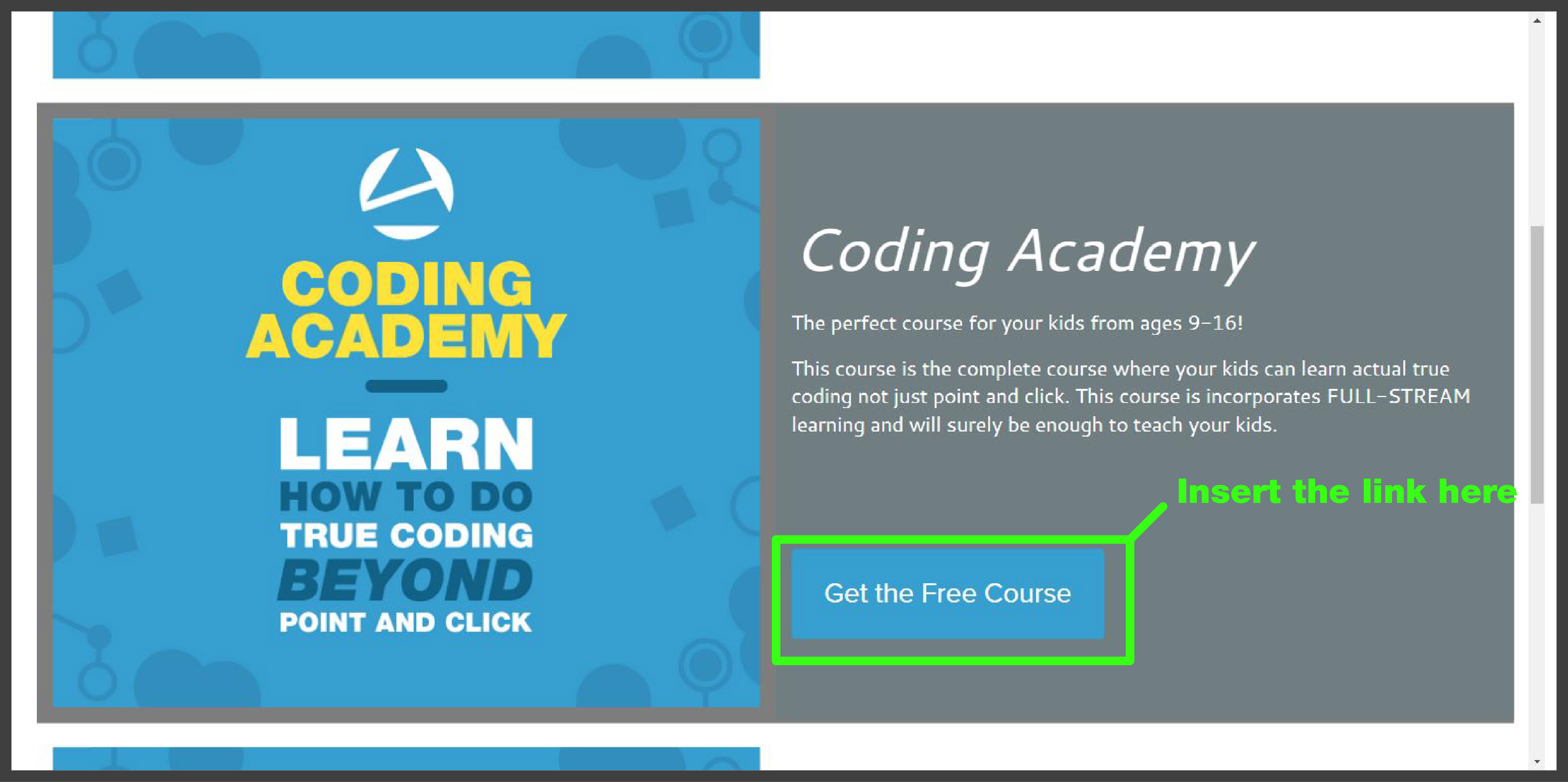

The Reports section gives you access to commission, lead tracking, and sales reports. The My Ledger report will be a valuable tool you can use to access your financial earnings.
Contact Us
If you have any questions, please don't hesitate to contact us. You may call or e-mail us for questions you may have. We love hearing from our customers. The Anomaly team provides support and attention. We are owners of a specialized business and suite of products and we take pride in the excellence of our work. We are serious about creating the best experience for our clients as we enhance and add value to their organizations. We are also serious about the personal attention we provide for our customers.
Phone: (615) 200-0514
E-mail: support@anomalystudios.com
For Support Requests:
Click here to login to the support Portal. If you don't have an account click the Sign Up button in the upper right.
Mail:
Anomaly Studios, LLC
P.O. Box 682592
Franklin, TN 37068
Zoom Meeting:
Click here to schedule a real-time live Zoom call with our Founder, Joshua Lomelino.
Your End User Agreements
This demo shows how to set up the necessary legal agreements for your website, including a Terms of Service, Privacy Policy, and Cookies Policy. You'll learn how to create these pages in the CMS, customize the content, and link them throughout your website. By the end, you'll have the framework in place to automatically capture user agreement to your legal terms when they create an account or interact with your site.
Create a Privacy Policy page with the URL "/privacy-policy".
Create a Terms and Conditions page with the URL "/terms-and-conditions".
Create a Cookies Policy page with the URL "/cookies-policy".
Copy and paste the company's specific Terms of Use, Privacy Policy, and Cookies Policy content into the respective pages.
Update the login page link in the main navigation to point to the client user login page.
Setting Up Licensing Agreements in AMP (0:09)
Josh Lomelino explains the process of setting up licensing agreements, including end-user agreements, privacy policies, and cookies policies.
AMP automates the process of capturing user agreements, including timestamps when users create accounts.
Customization of Terms of Use, Privacy Policy, and Cookies Policy is necessary, often done with the help of attorneys or services like LegalZoom.
The demo focuses on how to set up these legal agreements in the AMP system.
Creating and Linking Legal Pages (1:52)
Josh demonstrates creating a new page for the Privacy Policy, Terms and Conditions, and Cookies Policy in the CMS.
Each page is given a specific URL and description, and categories can be created for better organization.
The URLs for these pages are crucial for AMP to capture user agreements automatically.
Josh shows how to link these legal pages from the login page and other relevant pages on the website.
Handling User Consent and Cookies (2:31)
Josh explains the process of capturing user consent for Terms of Service, Privacy Policy, and Cookies Policy when users create accounts.
AMP displays a timestamp of when users agree to these policies, which can be reviewed later.
For users who visit the site without creating an account, AMP displays a passive cookies notice.
Users can click "Learn More" to view the Cookies Policy, which is stored in their browser once accepted.
Setting Up Legal Document Pages (5:26)
Josh demonstrates copying and pasting legal documents into the created pages for Terms and Conditions, Privacy Policy, and Cookies Policy.
AMP formats the documents automatically, and users can manually adjust styles if needed.
The process involves submitting changes to the database to reflect the updated legal documents.
Josh emphasizes the importance of working with attorneys or legal services to craft specific legal agreements for the business.
Finalizing the Setup and User Experience (10:09)
Josh updates the login page to link to the client user Portal, ensuring users can access the Terms and Conditions and Privacy Policy.
Users can create new accounts and agree to the terms, with the timestamp captured in the system.
The demo covers the end-to-end process of handling user agreements and cookies policies.
Josh encourages participants to ask questions and continue building their legal agreements and user management systems.
CMS Login
This video provides an overview of the different password-protected areas within AMP and how to manage access to them. Viewers will learn how to log in to the CMS, reset passwords, and create additional user accounts with varying levels of access. By the end, viewers will be login to the CMS in order to create content, manage classes, and integrate features within the CMS to build out their AMP site.
Note that you will need to go to yoursite.com/cms/login.html in order to login. Change yoursite.com to be your site.
Use the user name that was provided to you. Note that your password must be reset the first time you use the system. To do so enter the email you signed up to AMP with and do a password reset.
Once you have reset your password you will be allowed into the CMS and you can follow the steps shown in this demo.
Here are the key things you will be able to do after you watch this demo:
Access password-protected areas within AMP
Distinguish between public and Portal-protected content
Describe different types of Portal-protected content (one-off pages, classes with payment requirements)
Explain how customers can log in and view authenticated content
Manage access permissions for business owners and designated users in the CMS
Navigate to the CMS login page and log in
Reset password and create additional user accounts
Maintain password security and avoid saving passwords in browsers
Create content, manage classes, and integrate features within the CMS
Discuss next steps for building out content and integrating the logo
CMS Login Overview (0:10)
Josh Lomelino explains the different types of password-protected areas within AMP, emphasizing the distinction between public and Portal-protected content.
He describes the first type of content as one-off pieces that require a Portal login, such as specific pages or classes that need payment before access.
The second type involves classes where all content within is locked down by login, with some classes requiring payment for access.
AMP provides various methods for customers to log in and view authenticated content based on payment or simple login requirements.
CMS Login for Business Owners and Designated Users (1:48)
Josh Lomelino introduces the CMS login, which allows business owners and designated users to access different parts of AMP.
He explains the flexibility in granting access to users, such as access to the main site, blog, or financial records, depending on the business's needs.
The customer Portal provides access to financial records, payment status, past invoices, and interactions within the system.
Businesses can decide how much or little access to grant to different team members based on their roles.
Accessing the AMP CMS Login (3:32)
Josh Lomelino demonstrates how to log in to the AMP CMS login by navigating to site.com/cms/login.html.
He highlights the central dashboard that allows managing memberships, content, and the blog in one place.
The dashboard also handles marketing funnels and digital download resources, which can be linked from the main Portal.
Josh explains the password reset process for initial setup and the creation of additional accounts for different access levels.
Security and Password Management (4:32)
Josh advises against saving the password in the browser for security reasons, recommending to click "never" when prompted to save the password.
He emphasizes the importance of keeping the password in a secure place to prevent unauthorized access to customer records.
The password reset process is crucial for gaining access to the admin login and managing other accounts.
Josh concludes by mentioning the next steps in building out content and integrating various features with the logo.
Keywords: Anomaly AMP, digital engagement, online presence, content management, marketing funnels, evergreen content, user experience, scalability, healthcare industry, education sector, e-commerce, social media integration, customizable templates
Welcome to AMP

Here are the top things you will be able to do when you complete this module.
Introduction to AMP

Here are the top things you will be able to do when you complete this module.
Core Components


Coming Soon

Coming Soon
SMART Business Success Welcome
Please Portal/loginClientUserForm.php">login in order to view this course content.
Contact AMP Support
Contact AMP support
Click here to contact AMP support.
You may login to the support Portal (shown below) to view requests, provide updates, and interact with support tickets.

Keywords: Interactive chapters, video, chapters, AI, tools, Vimeo, Portal, Anomaly AMP, metadata
Generate Video Chapters with AI
Learn how to transform your educational videos by adding interactive chapters using Vimeo and Otter.ai. This tutorial will guide you through the process of creating an enhanced video learning experience with an interactive table of contents. You'll discover how to easily add precise chapter markers that allow learners to navigate directly to specific sections of your video. By the end of this demonstration, you'll be able to create a more engaging and user-friendly video interface that improves learner interaction and comprehension.
Following are the key things you will be able to do after you watch this demo:
Navigate the Vimeo Portal to upload and edit video content
Activate AI-powered chapter generation tools
Compare and replace automatic chapters with precise, manually curated chapters
Integrate Otter.ai transcript information into Vimeo's chapter interface
Create an interactive table of contents for educational videos
Enhance video learning experiences with precise, clickable chapter markers
Implement metadata components that improve learner engagement and navigation
Adding Interactive Chapters to Videos 0:09
Josh Lomelino explains the process of creating an interactive table of contents in the video player using two AI tools.
The first step involves logging into the Vimeo Portal using provided credentials and uploading the video through Anomaly Amp.
Users should navigate to the interactivity section in the main toolbar, activate the AI chapters tool, and wait for Vimeo to generate initial chapters.
Josh recommends using Otter's chapter information for more accuracy and precision, as Vimeo's automatic chapters may not be as effective.
Editing and Saving Chapters 2:13
Josh suggests loading the chapter information from Otter and copying and pasting it into the Vimeo interface.
Users need to add a chapter name and time code for each chapter, which can be derived from Otter's transcript.
It's crucial to save the transcript information to ensure it stores correctly in the Vimeo dataset.
Josh advises refreshing the page in Anomaly Amp after saving to confirm the chapters are present.
Finalizing and Publishing the Video 3:45
Once all chapters are added and saved, users should publish the video to make it available to learners.
The published video will include a description, learner outcomes, a table of contents, and an interactive table of contents.
This setup allows learners to interact with the content while viewing the video in picture-in-picture mode.
Josh concludes the demo by emphasizing the immersive learning experience created by the interactive table of contents.
Discover how to take your app idea from concept to high-fidelity MVP with lightning speed in this hands-on demo! You’ll learn how to organize product requirements, train AI tools using your own user stories, and craft powerful prompts that supercharge no-code and low-code platforms like Lovable and Thunkable. Watch step-by-step as we merge user insights, automate prototype creation, and iterate rapidly to build a functional, customizable app without writing code. Whether you're a founder, designer, or developer, this demo will empower you to launch better products, faster.
Discover how to take your app idea from concept to high-fidelity MVP with lightning speed in this hands-on demo! You’ll learn how to organize product requirements, train AI tools using your own user stories, and craft powerful prompts that supercharge no-code and low-code platforms like Lovable and Thunkable. Watch step-by-step as we merge user insights, automate prototype creation, and iterate rapidly to build a functional, customizable app without writing code. Whether you're a founder, designer, or developer, this demo will empower you to launch better products, faster.
After watching this video, viewers will be able to efficiently structure and document their product ideas, train AI tools with custom user stories and requirements, and generate detailed prompts for building full-featured app prototypes. They'll learn how to merge, organize, and optimize user stories to maximize productivity and reduce costs with AI-driven app builders like Lovable and Thunkable. By following these steps, viewers can rapidly create, customize, and iterate on high-fidelity MVPs, preparing their apps for further refinement and deployment. This workflow empowers users to leverage multiple no-code platforms and streamline their app development from concept to actionable prototype.
Following are the key things you will be able to do after you watch this demo:
Understanding Pricing and Pre-Composing Chats 0:11
Josh Lomelino explains the importance of understanding pricing in AI apps, emphasizing that credits are tied to prompts and chats.
He advises pre-composing chats in tools like ChatGPT to avoid high costs in apps like Lovable, which charge based on daily credits.
Josh demonstrates how to go back to prior steps in ChatGPT to train the system on user stories and features.
He highlights the need to ensure the chat is trained universally across all chats, otherwise, it needs to be asked to do so explicitly.
Training and Managing Chats 4:53
Josh discusses the process of training chats on system functionality, using SRT files as an example.
He explains the incremental compounding of work in Lovable, which makes it costly to start chatting without a well-defined prompt.
Josh emphasizes the importance of optimizing the use of credits to avoid high costs, comparing it to the cost of a development team.
He mentions the potential for the browser to choke on large chats and the need to break them into manageable parts.
Merging and Organizing User Stories 7:17
Josh demonstrates how to merge multiple chats to create a faster and more efficient chat.
He explains the process of outputting user stories as a CSV and the challenges with special characters in CSV files.
Josh suggests exporting as an Excel file to fix formatting issues.
He highlights the importance of incrementally building a pipeline to automate the creation of front-end interface screens.
Enhancing User Stories with Features and Acceptance Criteria 9:36
Josh adds a feature column to the user story backlog, differentiating it from user story language.
He includes acceptance criteria, which helps in testing and identifying the area within the app where the feature would exist.
Josh emphasizes the importance of documenting key wins and moments in a Google Doc for future reference.
He explains the process of comparing the current chat output with a saved Word file to ensure completeness.
Creating a Master Prompt for Lovable 17:44
Josh discusses the process of creating a master prompt for Lovable, which includes context, logical structure, explicit instructions, and adaptive considerations.
He highlights the need for granular detail to get specific UI controls in the prompt.
Josh explains the importance of saving the output as a Google Doc or GitHub repository for version control.
He demonstrates how to rewrite the master prompt to include all features in one MVP release.
Training Lovable on Documentation 42:48
Josh trains Lovable on the documentation of the tool, which helps in creating a prompt for Lovable.
He explains the process of crawling through the documentation pages and listing the pages learned from.
Josh emphasizes the importance of checking that the AI is actually doing what it claims to do.
He demonstrates how to extract and summarize recommendations from the AI.
Refining and Customizing the App 45:00
Josh refines and customizes the app by adjusting colors and mastering prompting.
He explains the process of using chat mode to plan additional features like a coach and admin Portal.
Josh demonstrates how to toggle between different device types to test the app on various form factors.
He highlights the importance of iterating on the app to ensure it meets user needs and pain points.
Exploring Different Tools and Integrations 49:51
Josh explores different tools like Thunkable, Bubble IO, Cursor, Replit, Flutter Flow, and Draftbit.
He explains the process of training the AI on the documentation of these tools to create a single prompt.
Josh highlights the importance of integrating tools like Supabase and Airtable for data management.
He emphasizes the need to experiment with different tools to find the best fit for the project.
Finalizing the MVP and Next Steps 1:04:33
Josh finalizes the MVP by ensuring all features are included in the prompt.
He explains the process of exporting the code base and pushing it to GitHub for further development.
Josh highlights the importance of iterating on the app to ensure it meets user needs and pain points.
He explains the next steps of refining and customizing the app, and preparing it for deployment to the app stores.
Partner Center Tour
The Affiliate Center is a password-protected Portal that you can use to access your sales reports, redirect links, and acquire marketing resources that is provide for you in the form of Banners, Email Templates or Web Pages. The Affiliate Center will give you easy access to the tools and information they you'll to pile up those commissions!
If you haven't logged in yet to your affiliate account, follow these simple steps:
1. Access the instructional email we sent you with your login information. You should receive this email once you have completed our opt-in form with your name and email address. This email will contain your ID, Password and Referral Code which you should keep secure at all times so you don't lose access to your account.
2. Access the Affiliate Center Login in Page.

3. Just enter your login information, click the login button, and you're in!
There are three menu categories in the Affiliate Center: Home, Resources, and Reports.

In the Home section you can access your profile to update you contact information including email, phone number, address and the name of your company. You can also access the programs tab to see what commission programs you are included in and see what the products you can sell and what your commission setup is with those programs. Lastly, your commission structure can be viewed on the last tab

The resources section is where the magic happens. This is where you get the tools you need for promoting our digital products.

Important Note: Use only these links, they are provided specifically for you. Not doing so may result in you not getting your commission.
TIP: You can use the link to wrap a button or a clickable place a page or app!

The Reports section gives you access to commission, lead tracking, and sales reports. The My Ledger report will be a valuable tool you can use to access your financial earnings.
There are no Main Site search results.