
Search Phrase = four
This page is part of the JV partner and distributor on-boarding process. This is the redirect link from the Instructional Email Sequence in Infusionsoft
The Affiliate Center is a password-protected portal that you can use to access your sales reports, redirect links, and acquire marketing resources that is provide for you in the form of Banners, Email Templates or Web Pages. The Affiliate Center will give you easy access to the tools and information they you'll to pile up those commissions!
If you haven't logged in yet to your affiliate account, follow these simple steps:
1. Access the instructional email we sent you with your login information. You should receive this email once you have completed our opt-in form with your name and email address. This email will contain your ID, Password and Referral Code which you should keep secure at all times so you don't lose access to your account.
2. Access the Affiliate Center Login in Page.

3. Just enter your login information, click the login button, and you're in!
There are three menu categories in the Affiliate Center: Home, Resources, and Reports.

In the Home section you can access your profile to update you contact information including email, phone number, address and the name of your company. You can also access the programs tab to see what commission programs you are included in and see what the products you can sell and what your commission setup is with those programs. Lastly, your commission structure can be viewed on the last tab

The resources section is where the magic happens. This is where you get the tools you need for promoting our digital products.
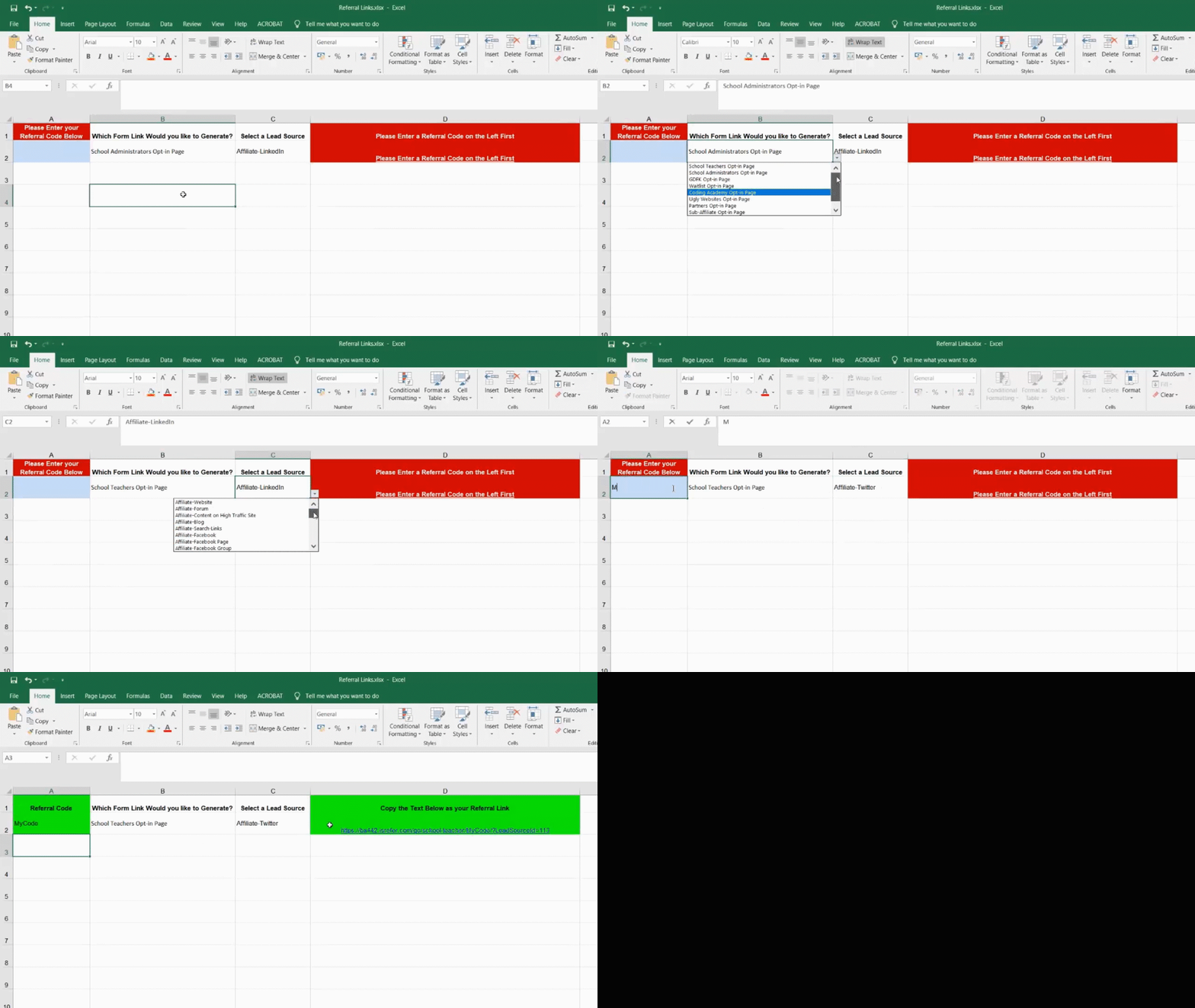
You'll need to copy and paste the links in the last column and send that to the person you want to sell to. As simple as that. That will redirect them to the Webform you have selected
Important Note: Use only these links, they are provided specifically for you. Not doing so may result in you not getting your commission.
TIP: You can use the link to wrap a button or a clickable place a page or app!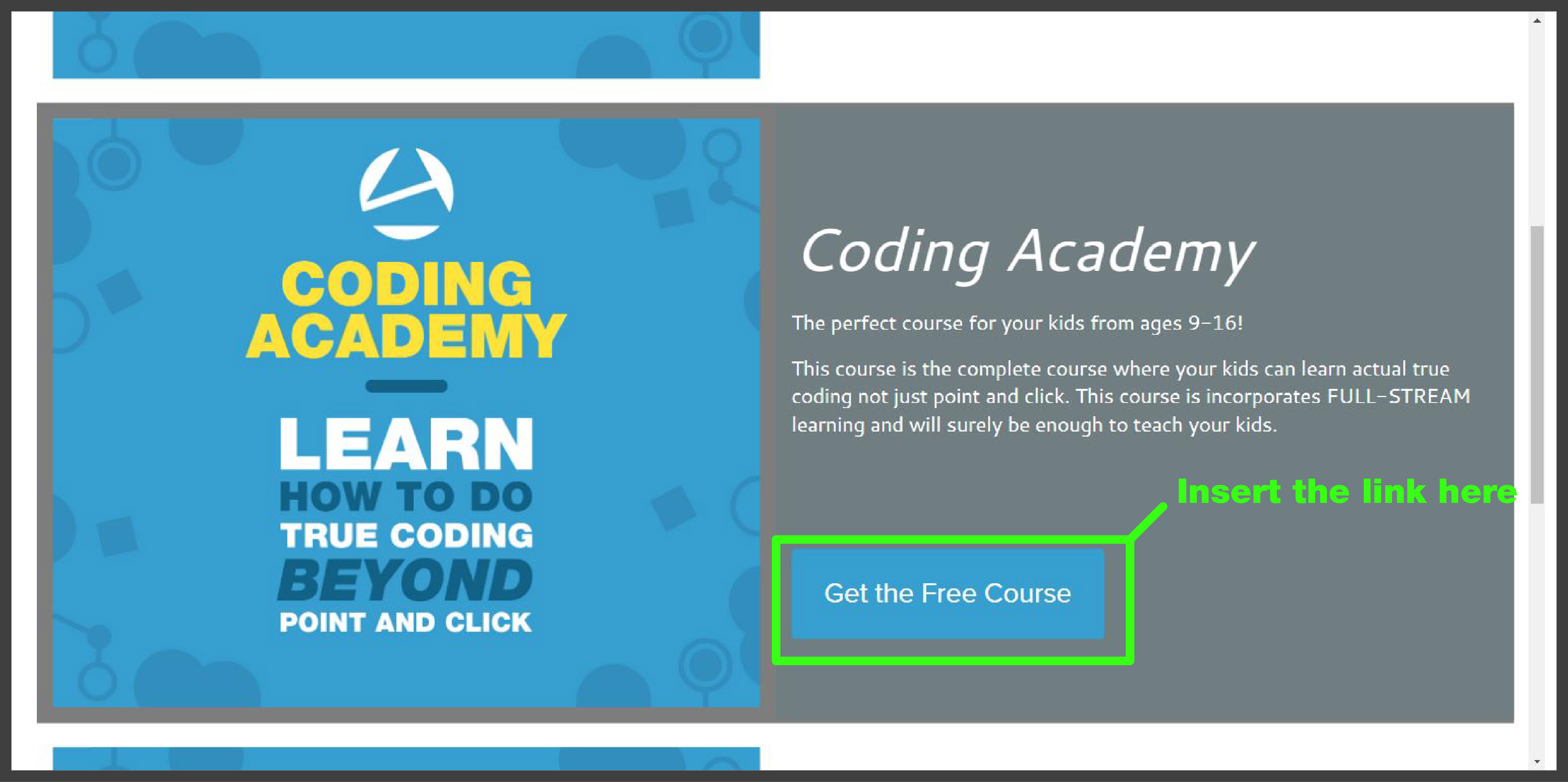

The Reports section gives you access to commission, lead tracking, and sales reports. The My Ledger report will be a valuable tool you can use to access your financial earnings.
The Big View Part 1
In this session, you will learn how to reverse engineer your top competitors' marketing strategies to understand their search engine ranking tactics. You will then apply a framework to architect your own traffic flow and conversion strategies, mapping out the customer journey and identifying where potential customers are coming from. By the end, you will have a plan to implement this traffic architecture and optimize your performance over time.
Here are the key things you will be able to do after you watch this demo:
Reverse engineer top competitors' marketing strategies to understand how they achieved high search engine rankings.
Identify the highest performing competitors to focus the research and leverage the insights.
Analyze how search engines like Google and Bing determine and rank content relevance for users.
Develop a customer journey map to understand the flow of traffic and where potential customers are coming from.
Apply a framework to architect the traffic flow and conversion strategies for the business.
Implement the traffic architecture plan using the framework and strategies presented.
Measure and optimize the traffic and conversion performance over time.
Building Traffic Architecture and Conversion Strategies (0:08)
Josh Lomelino introduces the session's focus on building out traffic architecture, comparing it to planning traffic flow in a city, with the business representing the city.
The goal is to plan for traffic to reach the business, convert prospects into customers, and then grow and scale from there.
Josh emphasizes the importance of exhausting free or near-free options initially and reverse engineering top competitors to understand their marketing strategies.
The strategy will focus on the highest performing competitors, narrowing the research to four or five examples for better leverage.
Understanding Search Engine Rankings (1:41)
Josh explains the need to understand how search engines view competitors and why they rank in specific positions on the first page.
He highlights that search engines like Google and Bing aim to provide relevant content quickly to maintain their top position in the search engine market.
The key to success is not tricking the search engines but ensuring the necessary steps are taken to rank higher.
Josh stresses the importance of learning how the system works and will unpack the tools and strategies to achieve this.
Customer Journey Mapping and Framework Development (3:52)
Josh introduces the concept of creating a customer journey map to understand the flow of traffic and where people are coming from.
The framework will help in thinking through the process and identifying where people are hanging out online.
In the next video, Josh will present a framework that can be used as an architect to build the traffic architecture.
The plan will include mapping out the framework and developing a strategy for implementation.
Keywords: Content,creation,workflow,time-saving,high-quality,student,outcomes,audio,file,screen,recording,Camtasia,OBS,generative,AI,digital,double,course,matrix,instructional,design,Otter,PowerPoint,slides
Josh Lomelino's ultimate content creation workflow is designed to dramatically reduce course development time from months to weeks or days by leveraging various content generation methods. His approach ranges from simple audio-only techniques to fully automated workflows using generative AI, with a focus on delivering clear, measurable learning outcomes. The workflow encompasses four progressive methods, starting with basic audio creation and advancing to complex AI-driven content generation that can produce digital avatars, slides, and video content from simple text prompts. By providing a flexible, scalable approach, Lomelino enables content creators to efficiently develop high-quality online courses and educational materials.
Josh Lomelino's ultimate content creation workflow is designed to dramatically reduce course development time from months to weeks or days by leveraging various content generation methods. His approach ranges from simple audio-only techniques to fully automated workflows using generative AI, with a focus on delivering clear, measurable learning outcomes. The workflow encompasses four progressive methods, starting with basic audio creation and advancing to complex AI-driven content generation that can produce digital avatars, slides, and video content from simple text prompts. By providing a flexible, scalable approach, Lomelino enables content creators to efficiently develop high-quality online courses and educational materials.
After this demo, learners will be able to:
Understand the four Methods of Content Creation
Differentiate between audio-only, screen recording, webcam, and fully automated content generation techniques
Recognize the strengths and limitations of each workflow method
Develop Efficient Content Generation Skills
Apply AI tools like Otter AI, Claude AI, and ChatGPT for script drafting and refinement
Create high-quality educational content using streamlined workflows
Leverage AI Technologies for Course Development
Utilize generative AI platforms for audio, video, and slide creation
Transform content development timelines from months to weeks
Design Learner-Centered Educational Content
Craft clear, measurable learning outcomes
Develop instructional materials that focus on practical skills and immediate application
Implement Scalable Content Production Strategies
Overview of Content Creation Workflow 0:09
Josh Lomelino introduces the ultimate content creation workflow class, aiming to reduce course development time from months to weeks or days.
The course will cover a blend of simple to fully automated workflows, starting with simpler methods for quick wins and progressing to advanced approaches.
Emphasis is placed on delivering clear, measurable outcomes and setting up necessary systems from the start.
The course will cover creating basic audio files, screen recording using tools like Camtasia or OBS, and fully automated workflows using generative AI.
Methods of Content Creation 1:30
Josh Lomelino outlines four methods of content creation, ranging from simple to fully automated, with each method providing a different level of complexity and automation.
Method one involves creating audio-only content using tools like Claude AI or ChatGPT to refine scripts and generate final audio files.
Method two involves real-time screen recording using software like Camtasia, capturing both screen content and voice simultaneously.
Method three combines screen recording with live webcam footage, allowing for a more dynamic on-screen presence.
Method four uses AI to generate a digital double video from a recorded vocal track, with AI also generating PowerPoint or Canvas slides.
Detailed Explanation of Methods 2:49
Method one: Josh explains the process of refining raw text into final audio scripts using AI tools and recording the final audio file manually or with AI.
Method two: Josh describes using Camtasia to record both screen and voice simultaneously, minimizing post-production work and suitable for relaxed, adaptable work.
Method three: Josh details recording both screen and webcam footage in one take, requiring careful setup for a consistent on-camera presence.
Method four: Josh explains using AI to generate a digital double video from a recorded vocal track, with AI also generating slides synchronized to the transcript.
Implementation and Integration 10:04
Josh emphasizes the importance of starting with method one and progressing sequentially to method four, explaining the workflows and specific tools used to optimize the process.
The course is designed to provide strategies that can be implemented immediately, with each method providing a different level of automation and complexity.
Josh will demonstrate how to generate scripts, auto-generate audio files, and record both audio and video manually, as well as how to automatically generate PowerPoint and Canvas slides using AI.
The final video will show how to integrate these workflows into Anomaly AMP, providing learners with contextual information and a timeline breakdown.
Keywords: Screen,recording,audio,capture,on-camera,presentation,production,challenges,lighting,consistency,studio,lights,color,temperature,LED,panels,backlights,kicker,light,digital,double,4K,webcam,system,performance,green,screen,Camtasia
In this video, Josh Lomelino demonstrates Method Three for creating engaging screen recordings that combine on-camera presence, screen capture, and audio. Viewers will learn how to set up professional lighting using LED panels, choose the right camera equipment, and optimize their recording environment for high-quality video production. The tutorial covers essential techniques for maintaining visual continuity, managing lighting color temperatures, and using tools like Camtasia and green screens to create polished, professional-looking video content. By following Josh's guidance, content creators will be able to produce dynamic, natural-looking screen recordings with improved technical quality and visual appeal.
In this video, Josh Lomelino demonstrates Method Three for creating engaging screen recordings that combine on-camera presence, screen capture, and audio. Viewers will learn how to set up professional lighting using LED panels, choose the right camera equipment, and optimize their recording environment for high-quality video production. The tutorial covers essential techniques for maintaining visual continuity, managing lighting color temperatures, and using tools like Camtasia and green screens to create polished, professional-looking video content. By following Josh's guidance, content creators will be able to produce dynamic, natural-looking screen recordings with improved technical quality and visual appeal.
Here are the key things you will be able to do after you watch this demo:
Manage on-camera and screen recording simultaneously
Maintain visual continuity during video recordings
Set up professional lighting using LED panels
Adjust color temperature and brightness for optimal video quality
Create a three-point lighting setup with key, fill, and kicker lights
Select and configure appropriate camera equipment for video production
Optimize system performance for screen and camera recording
Use a Wacom tablet for digital whiteboarding
Implement green screen techniques for background removal
Combine multiple video takes into a seamless recording
Export and render high-quality video files
Create digital double avatars for reusable content
Troubleshoot common video production challenges
Select and position lighting equipment safely
Integrate on-camera performance with slides and screen recordings
Method Three Demo and Challenges 0:08
Josh Lomelino introduces method three, which involves screen recording, audio, and on-camera capture, emphasizing its ability to capture natural, unscripted moments.
He highlights the challenges of managing both screen and camera presence simultaneously, including the need to maintain a consistent camera angle and expression.
Josh explains the importance of resuming recording with a neutral expression to ensure visual continuity.
He mentions the difficulty of pausing and resuming recording without noticeable edits when on camera.
Lighting Considerations for On-Camera Work 1:46
Josh discusses the significance of lighting in on-camera work, including the need to keep lighting consistent between takes.
He recommends using affordable studio lights, such as LED lights, which stay cool and are suitable for longer sessions.
Josh explains the concept of color temperature, noting that outdoor light can affect indoor lighting and cause color shifts.
He suggests using LED lights that allow adjustments in brightness and color temperature to manage lighting effectively.
Setting Up Lighting Equipment 3:02
Josh shares his preference for the Spectro Essential 360 LED panels, which range from 3250 to 6000 Kelvins and are dimmable.
He describes his typical setup, which includes stacking four LED panels in front and sometimes behind him to create soft, even light.
Josh emphasizes the importance of using back lights to create a "kicker light" effect, which helps outline the subject and makes them stand out from the background.
He advises adding weight to light stands to prevent them from tipping if bumped.
Camera and Recording Equipment 6:07
Josh talks about using a full-frame camera like the Canon 5D Mark III for high-quality recordings, but notes that a good 4K webcam can also deliver excellent results.
He recommends Logitech webcams, such as the Logitech 1080P cam, for their affordability and performance.
Josh explains the benefits of recording screen and camera separately, especially if the system can't handle 4K video and screen capture simultaneously.
He mentions the use of digital double avatars for reusing lighting and performance footage.
Optimizing System Performance and Audio Settings 8:15
Josh advises optimizing the graphics card and operating system for better system performance.
He recommends setting the microphone to 48,000 hertz and ensuring phantom power is turned on through the sound interface.
Josh suggests using a Wacom tablet for live whiteboarding, either with the Cintiq for direct drawing or a more affordable tablet for drawing on a pad.
He emphasizes the importance of setting pen lines thick enough to show clearly in high-resolution recordings.
Using Camtasia and Green Screens 9:20
Josh highlights Camtasia's ability to combine multiple takes into one smooth recording and overlay on-camera performance videos on PowerPoint slides.
He explains the use of green screens for added flexibility, including the need to light the green screen evenly and separately from the face lighting.
Josh mentions the built-in removal tool in Camtasia for easily removing the green screen background.
He advises fine-tuning the green screen setup to avoid issues with hair and shoulder edges.
Exporting and Backing Up Videos 10:17
Josh recommends exporting videos as MP4 files using the H.264 format with a rendering quality around 75%.
He advises keeping files organized and backed up for potential updates.
Josh mentions the use of green screens for recording digital double avatar videos, which can be easily removed from the background later.
He concludes the demo by encouraging viewers to invest in high-quality audio and video assets for better results.
Keywords: automation,content,creation,production,studio,digital,doubles,video,avatar,text,script,cloud-based,tools,slide,decks,PowerPoint,Canva,training,programs,staff,development,retention,coding,Academy,method,four
Method four of the Ultimate Content Creation Workflow enables creators to automate their entire video production process by leveraging cloud-based tools and digital technology. By mastering this method, content creators can clone their voice, generate video avatars, and produce high-quality training videos and presentations with minimal time and effort. The workflow allows you to transform a simple text script into a fully automated video production, complete with synchronized audio, visuals, and slide decks. Ultimately, this approach empowers busy professionals to scale their content creation without being constrained by traditional time-consuming production methods.
Method four of the Ultimate Content Creation Workflow enables creators to automate their entire video production process by leveraging cloud-based tools and digital technology. By mastering this method, content creators can clone their voice, generate video avatars, and produce high-quality training videos and presentations with minimal time and effort. The workflow allows you to transform a simple text script into a fully automated video production, complete with synchronized audio, visuals, and slide decks. Ultimately, this approach empowers busy professionals to scale their content creation without being constrained by traditional time-consuming production methods.
Here are the key things you will be able to do after you watch this demo:
Clone your voice for digital content creation
Generate automated video avatars
Transform text scripts into complete video presentations
Automate slide deck production in PowerPoint and Canva
Scale content creation with minimal time investment
Develop training materials efficiently
Leverage cloud-based production tools
Create digital doubles of yourself
Streamline video production workflows
Produce high-quality educational content without extensive technical skills
Ultimate Content Creation Workflow Overview 0:08
Josh Lomelino introduces method four, which automates the entire content creation process.
This method combines the first three methods but focuses on automation, making it more efficient.
Josh emphasizes the importance of mastering the first three methods before attempting method four.
The method allows for the creation of high-quality content with minimal time, effort, and budget.
Method four's Impact on Production 1:09
Josh describes the transformative power of method four, which revolutionized his production process.
A potential customer expressed interest in using the method for staff development and retention.
Josh explains how he creates digital doubles of himself to automate the production process.
The method enables large-scale production without the time constraints typically associated with video creation.
Addressing Time Constraints in Content Creation 1:49
Josh shares experiences of customers who face time constraints in creating training programs and classes.
He highlights the challenges of maintaining a busy schedule while keeping up with production demands.
Method four allows for the cloning of voices and creation of audio tracks to generate video avatars.
The method significantly reduces the time required to produce multiple videos.
Automation Capabilities of Method four 2:29
Josh explains that everything in the final video is fully automated, starting from a text script.
The process involves copying and pasting the script into cloud-based production tools.
High-end computers are not necessary as most of the heavy lifting is done in the cloud.
The method also automates the creation of slide decks in tools like PowerPoint or Canva.
Step-by-Step Process Walkthrough 2:48
Josh mentions that he will walk through each part of the process in the following sections.
The detailed steps will provide a comprehensive understanding of method four.
The process aims to make content creation more efficient and less time-consuming.
Josh emphasizes the importance of understanding each step to effectively implement the method.
Keywords: AI, transcription, video, Bloom's Taxonomy, metadata, learner outcomes, content, table, contents, time, codes, interactive chapters, prompts
Learn how to transform lengthy video content into easily digestible, learner-friendly resources using AI technology. This tutorial demonstrates how to automatically generate comprehensive text information including descriptions, educational outcomes, and detailed summaries directly from video transcripts. By utilizing tools like Otter AI and Anomaly Amp, you'll discover a streamlined method to create navigation cues, time-coded summaries, and interactive chapters that enhance viewer understanding and engagement. The process requires minimal manual effort while providing maximum value for learners seeking to quickly grasp the key points of extended video content.
Learn how to transform lengthy video content into easily digestible, learner-friendly resources using AI technology. This tutorial demonstrates how to automatically generate comprehensive text information including descriptions, educational outcomes, and detailed summaries directly from video transcripts. By utilizing tools like Otter AI and Anomaly Amp, you'll discover a streamlined method to create navigation cues, time-coded summaries, and interactive chapters that enhance viewer understanding and engagement. The process requires minimal manual effort while providing maximum value for learners seeking to quickly grasp the key points of extended video content.
Following are the key things you will be able to do after you watch this demo:
Analyze the process of using AI tools to generate comprehensive video metadata
Generate automated transcripts and summaries using Otter AI
Create detailed video descriptions and educational outcomes with minimal manual effort
Extract key thematic points and time-coded sections from video content
Implement interactive chapters and navigation cues in video presentations
Transform lengthy video demonstrations into learner-friendly, easily navigable resources
Generating Text Information for Video Content 0:09
Josh Lomelino introduces the purpose of the video: to show how to generate text information to support video content.
He explains the challenges of long videos and the time-consuming process of creating a manual table of contents.
Josh suggests using AI to automatically generate contextual and navigation cues for viewers.
He outlines the four main cues for learners: description, outcomes, table of contents, and interactive chapters.
Using Otter AI App for Transcription 1:40
Josh explains the process of using the Otter AI app to generate a transcript of a finished video.
He details the steps of dragging and dropping the video file into the Otter user interface for transcription.
Once the transcription is complete, Josh shows how to access the Summary tab to extract the table of contents.
He emphasizes the importance of the Summary tab in providing thematic breakdowns and time ranges.
Creating Descriptions and Educational Outcomes 3:44
Josh demonstrates how to generate a three to four sentence description using AI prompts in Otter.
He explains the process of copying and pasting the description into the Anomaly Amp system.
Josh highlights the importance of providing a list of educational outcomes for learners.
He shows how to use AI prompts to generate a list of outcomes based on the training script.
Formatting and Organizing Content 4:53
Josh provides tips on formatting the content in the Anomaly Amp system.
He suggests making the time codes appear as text summaries and setting them as heading two (h2) in bold.
Josh explains how to create a clear message under the outcomes heading to guide learners.
He recommends using either a numbered or bulleted list for the outcomes.
Finalizing the Detailed Summary 5:28
Josh completes the detailed summary by including time codes for each item in the video.
He reiterates that the process requires minimal manual work and produces valuable content for learners.
Josh mentions the importance of reviewing training on Bloom's Taxonomy for proper verb usage in AI tools.
He offers supplemental files to help train AI tools to use the correct verbs for the level of learning.
Introduction to Interactive Table of Contents 6:18
Josh announces the next video, which will cover the fourth component: the interactive table of contents.
He explains that this component converts the table of contents into interactive chapters in the video.
Josh highlights the benefits of this feature for users on various devices.
He promises to show the process of creating interactive metadata in the next video.
This welcome video guides your through a comprehensive, actionable UX design process that transforms innovative ideas into market-ready products. Viewers will learn how to uncover customer pain points, develop clear user personas, and rapidly iterate prototypes using Lean UX principles. The session demonstrates how to map out product strategies, conduct usability testing, and seamlessly prepare for product launch. Whether you’re a founder, designer, or product manager, this demo equips you with the tools to accelerate time-to-market and deliver a superior user experience.
This welcome video guides your through a comprehensive, actionable UX design process that transforms innovative ideas into market-ready products. Viewers will learn how to uncover customer pain points, develop clear user personas, and rapidly iterate prototypes using Lean UX principles. The session demonstrates how to map out product strategies, conduct usability testing, and seamlessly prepare for product launch. Whether you’re a founder, designer, or product manager, this demo equips you with the tools to accelerate time-to-market and deliver a superior user experience.
After completing this video, viewers will understand a proven, step-by-step UX design process that turns innovative ideas into market-ready products with efficiency and clarity. They will be equipped to map out customer pain points, prioritize features, and create user personas that drive actionable insights. The video empowers participants to build and refine rapid prototypes, conduct usability testing, and confidently guide products toward a successful launch. By following this process, viewers can accelerate time to market and deliver a seamless, customer-focused experience.
Following are the key things you will be able to do after you watch this demo:
Introduction to UX Design Process 0:00
Josh Lomelino introduces himself and expresses excitement about showcasing user experience design examples.
He emphasizes the importance of the Lean UX approach, which transforms innovative ideas into market-ready products efficiently.
The focus is on demonstrating the power and flexibility of their UX design process through various phases.
Josh mentions that he will show UX prototypes to illustrate each phase in context.
Phase One: Building the Foundation for Innovation 0:41
Josh explains that the first phase involves a deep dive into understanding the key questions about the product.
The goal is to identify customer and business pain points and map out the vision.
This phase involves a forensic exploration of customer pain points and proposing solutions.
The outcome is a laser-focused blueprint that transforms abstract concepts into actionable insights.
Phase Two: Execution Strategy and Rapid Ideation 1:48
In this phase, the focus is on turning insights into a rapid ideation process.
The team visualizes the customer experience and creates an actionable roadmap.
Detailed customer experience mapping is performed for strategic feature prioritization.
The approach is agile, allowing for a dynamic roadmap that adapts and evolves.
Phase Three: Product Leadership and Strategic Alignment 2:34
Josh describes this phase as connecting strategic dots to ensure every feature aligns with business objectives.
The product team and UX team become strategic partners, aligning product vision with business objectives.
The outcome is a unified strategic narrative and the basis for an actionable project plan.
The team starts building the product and approaches the MVP stage.
Phase four: Pre-MVP Development and Product Reconnaissance 3:14
This phase involves identifying potential barriers before building the rapid prototype.
Product and technical reconnaissance is critical for success, uncovering technological limitations and design challenges.
The goal is to prevent future roadblocks and identify technology opportunities.
The team finalizes the pre-MVP development, ensuring a smooth transition to the next phase.
Phase Five: UX Design and Persona Development 4:03
Josh highlights the importance of user experience research in this phase.
The team creates detailed customer scenarios, mapping each pain point to specific system features.
The focus is on translating user research into detailed personas for rapid prototyping.
This phase brings interfaces to life with precision and continuous iteration.
Phase Six: Building the Rapid Prototype 4:47
The team transitions from paper sketches to interactive wireframes, moving from low to high fidelity.
Continuous feedback is gathered at each key point of the process, making adjustments as needed.
The goal is to go from imagination to a tangible experience, seamlessly integrating business logic into interface solutions.
The team progressively refines the prototype, ensuring it meets user needs and business objectives.
Phase Seven: Usability Testing and Continuous Refinement 5:27
Usability testing is conducted with continuous feedback and multiple rounds of revisions.
The focus is on continuous user experience refinement and evidence-based design solutions.
The team aims to hit the bullseye together, ensuring the product meets user needs and business objectives.
The process involves systematic improvement, leading to a polished final product.
Phase Eight: Finalizing Visual Design and Product Identity 5:49
Once the user experience is locked in, the team develops comprehensive style guides.
The goal is to create a comprehensive brand experience, going beyond aesthetics.
The development team gains a clear understanding of the visual voice of the product.
The team defines icons, typography, color, and user interface consistency.
Phase Nine: Design and Documentation for Development 6:35
As the project nears the end, the team prepares technical specifications and development guidelines.
The focus is on creating a seamless handoff to the development team.
The team provides technical blueprints and detailed implementation guidelines.
The goal is to ensure a smooth transition to development and preparation for launch.
Phase Ten: Launch and Final Transformation 6:57
The final phase involves transforming the prototype into a live product.
The team helps with the MVP launch, either using the client's development team or their tech stack.
The team provides all final specifications and the digital prototype from prior steps.
Clients can optionally choose to accelerate their time to market by leveraging the SAS MVP accelerator.
Conclusion and Call to Action 8:41
Josh emphasizes the importance of transforming concepts into reality.
The team has invested over 15,000 hours developing a framework that reduces front-end development time.
The mobile-first responsive architecture offers instant scalability and reduced technical complexity.
The team offers to partner with clients to augment design and technology efforts, ensuring a successful launch.
Our Products / four Pillars
Every product you offer follows the same architecture:
DIY EDUCATION PATH
↓
Prototype / Initial Build
↓
Implementation / Consulting Services
↓
Platform Licensing / Recurring Revenue
Every product therefore has two operating modes:
Mode 1 — DIY Enablement
Highly scalable education and tools.
Mode 2 — Done-For-You Implementation
High-value consulting and development.
This dual structure allows my business to scale without losing high-end consulting revenue. Note that we still can do a full done for you white glove implementation and completely bypass the DIY enablement layer. But long term that’s what I’m trying to get away from so we can scale.
Product Pillar 4 — Coding Academy
7.1 Platform Overview
7.2 Problem It Solves
7.3 Curriculum-as-a-Service Delivery Model


Supercharge Your Revenue
What if one influencer could change your financial future?
With Anomaly AMP’s affiliate program, you earn 20% recurring commission—and you can split that with a partner: 10% to you, 10% to them.
Now imagine this: you team up with a social media influencer who has 1 million followers. You run just four simple campaigns per year—that’s one every quarter. Each campaign brings in just 12 new customers.
That’s 48 customers a year. Over 10 years, that’s 480 total customers.
Each one pays monthly. Your total affiliate commission? $2.38 million.
Split that 50/50, and you each earn $1.19 million—from a single partnership.
One influencer. One link. One smart strategy that pays you for the next decade.
That’s not hype. That’s leverage.

What if you didn’t just run one campaign—but built a team of 10 affiliate partners who each did the same?
In this model we'll demonstrate how you could team up with one influencer.
The influencer or partner commits to run 4 simple email or social media campaigns per year offering our free webminars, tools and courses—just one offer per quarter.

Each campaign brings in 12 new customers. That’s 48 per year, or 480 over 10 years.
Now multiply that by 10 partners:
That’s 4,800 customers on the platform.
With Anomaly AMP’s 20% commission, that generates over $57 million in affiliate commissions.
Split it evenly? That’s $28.6 million to your team—and $28.6 million to the influencers.
And it all started with one smart system.
One partnership. Multiplied by 10.
What if you didn’t build a team of affiliates—
You just partnered with influencers who already have audiences?
Here’s the model:
You’re the affiliate.
You partner with 10 influencers, each with 1 million followers.
Each runs 4 campaigns a year—just one per quarter.
Every campaign brings in 12 new customers.
That’s 480 customers per influencer, or 4,800 total customers over 10 years.
Each one pays monthly. You earn a 20% affiliate commission.
Split it 50/50? That’s $28.6 million to you and $28.6 million shared among the influencers.
You didn’t hustle harder.
You partnered smarter.
And built a $28 million passive revenue engine.

Let’s build it,
—Josh
There are no Main Site search results.